Choose Cover Art Sources in Picard
At a glance
MusicBrainz Picard lets users prioritize cover art sources based on release accuracy or visual appeal. Users should first verify release metadata before choosing artwork sources and embedding preferences. Different strategies suit collectors, casual listeners, or those with curated local images. Testing settings on small samples prevents tagging errors.
In this guide
In MusicBrainz Picard, choose cover art sources by deciding how much you care about exact release artwork compared with attractive or locally curated images. Cover art is useful for browsing, but it does not identify an audio file by itself. The album edition selected in Picard still matters, and the best-looking image can still be wrong for the release you are tagging.
Start with release accuracy
The first decision is not which image looks best. It is whether you want the image to represent the exact release you are tagging. A deluxe edition, remaster, regional issue, single-disc reissue, or digital version can have artwork that differs from the better-known album cover. If Picard has matched your files to the wrong edition, changing cover sources will not fix the underlying match.
Before changing artwork settings, review the release itself. Check the album title, artist credit, date, barcode if you have it, track count, track order, and country or format details where relevant. If those do not match your files, correct the release match first. Artwork should support a good match, not replace one.
This is especially important when a release-group image is attractive but generic. A release group represents the broader album or single, while a release is a specific issued version. The same music may exist as several editions with different covers. If your goal is a tidy personal player library, a representative cover may be acceptable. If your goal is accurate tagging, the exact edition deserves priority.
Related Picard choices can influence how easily you reach the right edition. If Picard keeps preferring the wrong kind of release, review your release preferences as well as your artwork settings. See Set Preferred Release Types in Picard for a focused guide to that part of the workflow.
Understand the provider list
Picard can use more than one cover art provider. The enabled providers are queried in order until an image is returned. Documented choices include Cover Art Archive release art, Cover Art Archive release-group art, approved MusicBrainz relationship URLs, and local files. Plugin providers can add fanart.tv and TheAudioDB, described as release-group representative sources rather than exact-release sources.
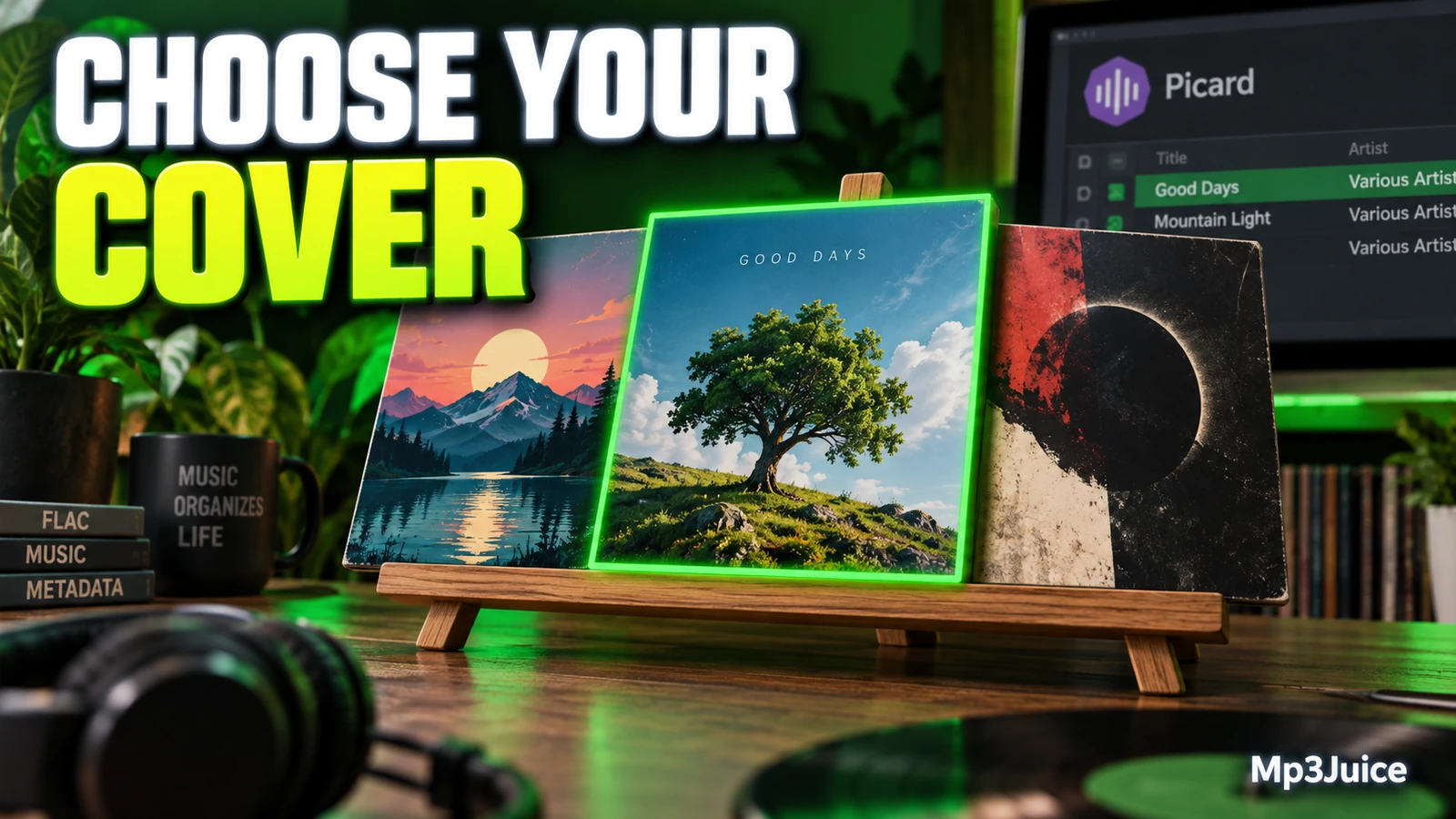
A practical order depends on what you value. If edition accuracy is your priority, place exact release artwork first. If visual consistency is more important for your listening setup, you may accept a representative source earlier in the list. If you maintain your own scanned images, local files may belong near the top for albums where you have curated artwork yourself.
Avoid thinking of the list as a quality ranking only. It is also an evidence ranking. The first source is the one you are asking Picard to trust most. A clean image from a broader album grouping can still be wrong for a particular pressing. A plain image from the exact release can be the better metadata choice.
If you use artwork provided through MusicBrainz relationships, verify the related metadata option in Picard before relying on that source. Do not assume relationship-based images are available just because a provider is visible in the cover art area.
Choose an ordering strategy
Use one of these simple ordering strategies, then adjust after inspecting a small sample of albums.
Accuracy-first library
- Put the release-specific archive source first.
- Use local files next only if your local artwork is organized and intentionally selected.
- Add release-group or plugin sources after that as fallback options.
- Inspect any album where fallback art appears, because it may not represent the exact edition.
This strategy suits collectors, archive-minded users, and anyone who cares about matching the visible cover to the release metadata. It also helps when albums have many editions with subtle artwork differences.
Player-friendly library
- Decide whether a representative cover is acceptable when exact release art is unavailable or less polished.
- Keep an exact release source enabled if you still want edition art when Picard can find it.
- Prefer a single front image if your normal playback and browsing routine has no use for extra image types.
- Check a few albums across different artists before using the setup widely.
This strategy is reasonable for a casual listening library where the main goal is attractive browsing in a phone, media server, or desktop player. It trades some edition precision for a cleaner visual experience.
Local-art controlled library
- Put local files first for folders where you have scanned or selected cover images.
- Use online sources only as fallbacks for albums without local artwork.
- Keep local filenames predictable, so the intended images are easier to review.
- Review albums with several images in the folder, especially if there are booklet, back, or disc images.
This strategy works when you have already invested effort into artwork. It is less suitable for messy download folders that contain unrelated images, because Picard can only be as reliable as the files you offer it.
Decide embed or external
Once Picard has selected an image, decide where it should be stored. Embedded artwork is written into the music files and uses more storage than keeping a separate image file nearby. Some music players display embedded images but do not find separate files, so test the actual player you use.
Choose embedded artwork when you move tracks between devices, sync files to portable players, or use software that does not reliably read separate image files. The tradeoff is that each tagged file may carry its own image, increasing total storage use. This can matter with large collections or albums containing many tracks.
Choose external artwork when you prefer one shared image per album folder, want easier manual review, or keep larger scans separate from the audio tags. Player behavior varies, so verify with your own software and devices before applying changes broadly.
Picard also offers controls for embedding only a single front image and for saving only a single front image separately. Those are useful when your playback software shows only a single cover anyway. Extra back covers, booklets, or disc images can be valuable for reference, but they may not improve everyday browsing.
If you save images as separate files, use a filename mask that will stay readable later. Picard adds the file extension based on the image type, so the mask itself should not include one. A simple front-cover name may be enough for ordinary album folders. More detailed naming can help when saving multiple image types or placing artwork in a subfolder.
Verify before batch saving
Cover art mistakes are easy to overlook until you browse your library later. Build a small verification routine before applying settings to many albums.
- Work on a copy first. Pick a small folder copied from your library, preferably with several album types: a standard album, a compilation, a reissue, and a single.
- Load and match the files. Confirm the release details before focusing on the image.
- Check the selected cover. Compare it with the edition information, not just your memory of the album.
- Record the source. Note whether the image came from release art, release-group art, local files, or another enabled provider.
- Save only the sample. Open the files or folder in your usual music player and confirm how the artwork appears.
- Adjust source order. If fallback images appear too often, move more exact sources higher or disable sources that cause confusion.
- Repeat with another small set. One album is not enough to reveal how compilations, multi-disc sets, or older releases behave.
For each test, write down the album, matched release, selected artwork source, storage choice, and what your player displayed. This gives you a useful record if you later decide to change provider order or switch between embedded and separate image files.
When reviewing matches, use a workspace that makes release details easy to compare before saving. If you want a stronger review workspace, see Add Custom Columns for Music Review in Picard.
Example choosing for a reissue
Example, fictional: Nora has a folder for Blue Windows by the fictional band North Arcade. The files came from a 2018 expanded reissue with two bonus tracks. The cover in her memory is the original 2004 blue sleeve, but the reissue has a silver banner across the top and a different back cover.
In Picard, Nora first checks the matched release. The track count and bonus tracks match the 2018 expanded edition, so she keeps that release. For cover sources, she puts release-specific artwork first. She keeps a release-group source enabled as a fallback, but lower in the order. The selected front image shows the silver banner, which is less visually clean than the original cover but correct for the files she owns.
For storage, Nora embeds a single front image because she wants the cover to travel with the files. She also saves a separate image file in an artwork subfolder for her own review. Before applying the same approach to the rest of her collection, she tries it on three copied albums and records what each player displays.
The key point is that Nora does not use the cover to decide what the audio is. She uses the release metadata to identify the edition, then chooses cover source ordering that supports that decision.
Common mistakes to avoid
- Using the prettiest image as proof of a match. A cover can be representative, incomplete, or from a different edition. Always verify the release details.
- Putting broad fallback sources first by accident. If edition accuracy matters, fallback sources should not outrank exact release sources.
- Assuming every player reads artwork the same way. Some setups favor embedded images, while others handle separate image files well. Test your own playback chain.
- Saving changes across the whole library immediately. A small copy reveals problems without forcing you to undo a large batch.
- Letting messy local folders drive artwork choice. Local files are powerful when curated, but confusing when folders contain old, duplicate, or unrelated images.
Set your provider order around your real goal: exact edition artwork, attractive browsing, or controlled local images. Then test the setting on a copied handful of albums, confirm the release match and player display, and only then apply it to a wider batch.
Need to look up another song for your collection? Search on Mp3Juice, then verify the specific release in Picard before choosing artwork for the permitted audio file you keep.