Create a Playlist from Selected Files in Mp3tag

At a glance
To create a playlist in Mp3tag, load and select desired audio files, arrange their order in the File List, then save or generate playlists. Use Playlist Generator for multiple playlists with grouping patterns like album or folder. Verify playlists by testing with a few files to ensure correct order and file access before full-scale use.
In this guide
You can create a playlist from selected files in Mp3tag by loading or adding the files, selecting the tracks you want, arranging the File List order, and saving a playlist for the selected files. The playlist should be treated as a reference list, not as a new copy of the audio. The practical checks are simple: confirm the saved order, confirm the files can be reached from where you plan to use the playlist, and test with a small selection before saving a larger list.
What the playlist does
A playlist made in Mp3tag is best understood as a map to existing audio files. It points a player toward files that are already stored somewhere on your computer or drive. Creating a playlist is therefore not the same as exporting, converting, backing up, or duplicating songs. Your job is to decide which files belong in the list, in what sequence, and, when generating multiple playlists, what rule should divide the files into separate playlist files.
Mp3tag supports .m3u and UTF-8 .m3u8 playlists. It can load playlists from File → Load Playlist/Cuesheet.... Files can be added with File → Add directory... or by holding Ctrl while dragging files from Windows Explorer. File List order can be rearranged by holding Alt while dragging. Playlist saving uses Options → Playlist, and the generator is available from File → Generate Playlists... or Ctrl + Shift + P.
Because a playlist is only useful if another app can follow its references, avoid making changes blindly across a large library. First create a short playlist with two or three selected files. Save it where you expect the final playlist to live, then open it in the player or device workflow you actually use. If the order and file access are correct, repeat the process with the full selection.
Prepare the selected files
Start with the exact tracks you want to reference. If your folder contains extra versions, voice notes, alternate masters, or unfinished exports, do not rely on the playlist step to sort them out later. Clean selection is easier than cleanup after the playlist has already been saved.
- Add the relevant files to Mp3tag. Use the documented add-directory workflow, or add individual files from Windows Explorer with the documented modifier key when needed.
- Check what is visible in the File List. Look at filenames and useful tag fields such as artist, album, disc number, and track. You do not have to edit tags to create a playlist, but visible information can help you avoid selecting the wrong file.
- Select only the playlist members. Highlight just the files that should be included. If you want a sampler, do not leave the full album selected.
- Arrange the File List order. Mp3tag lists loaded playlist contents in playlist order, and its generator sorting takes place in the main-window File List. If sequence matters, arrange the visible order before saving or generating.
- Count before saving. Compare the selected-file count with your intended list. A missing opener, duplicate version, or unwanted bonus track is easier to notice before you create the playlist.
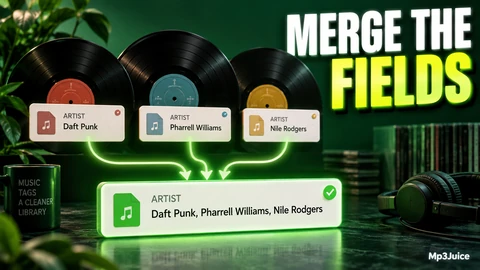
If messy tag fields make it hard to decide which files belong together, treat tag cleanup as a separate task before playlist creation. For example, repeated values in a field can make album-based decisions harder. The guide Merge Duplicate Tag Fields in Mp3tag can help when the File List is confusing because fields contain repeated values.
Use Playlist Generator syntax
The Playlist Generator is most useful when you want Mp3tag to split a loaded set of files into multiple playlist files. It asks for a pattern for the playlist filename and a format string used to partition the files into groups. In plain terms, the partitioning string answers the question, “Which files belong together in the same playlist?”
Use placeholders based on the grouping you want:
%_folderpath%groups files by folder path, useful when each folder is already a playlist-sized unit.%album%groups files by album, useful when the File List contains several albums and you want one playlist per album.%discnumber%groups files by disc number, useful when a multi-disc release should be split by disc.%artist%-%album%-%discnumber%combines fields, useful when one field alone is not specific enough.
The exact string you choose should match the strongest organizing information in your files. Folder path is often reliable when your storage structure is already curated. Album or disc fields are useful when tags are consistent. Combined strings are safer when a single field is too broad.
Keep the separator readable. A hyphen between fields, as in %artist%-%album%, makes the grouping easier to understand in the preview. Avoid building a format string so complex that you cannot quickly tell why one file ended up in a particular playlist.
The preview is your checkpoint. Before confirming, read it as a dry run: which playlist files will be created, and which grouping logic produced them? If the preview suggests too many playlists, your partitioning string may be too specific. If it suggests too few, your string may be too broad, or your tags may not distinguish the files well enough.
Example: one small selected-file playlist
Example: Maya is preparing a listening folder for a community radio guest segment. She has twelve audio files in Mp3tag: three songs from one artist, four from another, two station IDs, and three alternate edits that should not be played. She wants one playlist containing only seven approved tracks in a deliberate running order.
She first adds the working folder to Mp3tag, then selects only the seven approved files. The three alternate edits remain visible but unselected, so they are not part of the selected-file playlist. Before saving, she arranges the intended items in the File List so the opening track appears first, the station IDs appear between music blocks, and the closing track appears last.
For a single selected-file playlist, her main concern is not generator grouping. It is whether the selected items and File List order are correct. She saves a small test playlist first using only the first three items, places it in the same location where the final playlist will go, then opens it in her playback app. Once she confirms that the first three entries appear in the intended order and can be found from that location, she repeats the save with all seven selected files.
If Maya later decides she needs one playlist per contributing artist, the Playlist Generator becomes useful. She can use a partitioning string based on the artist field, or combine artist and album if those fields better describe the grouping. She checks the preview before confirming so she does not create an unwanted playlist group for the station IDs.
Check order and file access
Playlist problems usually show up in two ways: the tracks appear in the wrong order, or the player cannot find them. Both are easier to diagnose with a short verification routine. This check does not prove anything about audio fidelity or bit-perfect output. It only checks whether the playlist points to the intended files in the intended sequence.
- Save a tiny trial playlist. Use two or three selected files that represent your real case, such as a file from the beginning, middle, and end of the intended sequence.
- Open the playlist where it will actually be used. If the final playlist is meant for a folder, external drive, sync folder, or review area, test from that same kind of location.
- Confirm the sequence. The first visible or playable item should be the first item you intended. If not, return to Mp3tag and check the File List order before saving again.
- Confirm file access. If the player reports missing files, do not edit the playlist at random. First check whether the playlist was moved away from the files, whether the files were renamed, or whether the player is looking in a different location.
- Inspect the playlist as text if needed. A playlist file can often be opened in a plain text editor for read-only investigation. Look at whether the entries make sense for where you saved it.
Do not use a playlist test as a reason to delete originals or strip information from your library. The playlist depends on the audio files staying accessible. If you want to reorganize the library afterward, make a small copy of a folder and test the playlist behavior there before changing a larger structure.
Also remember that loaded playlist behavior may not display duplicate references to the same file as repeated File List rows in Mp3tag. If your intended playlist deliberately repeats the same audio file, verify the saved playlist and the playback app rather than relying only on the File List display.
When to generate many playlists
Use one selected-file playlist when the result is hand-curated: a show set, a workout sequence, a road trip list, a client review folder, or a short sampler. Use the Playlist Generator when the files should be divided by a repeatable rule, such as folder, album, disc number, or a combined tag pattern.
| Goal | Better approach | Reason |
|---|---|---|
| One custom running order | Selected-file playlist | You control membership and sequence directly. |
| One playlist per album | Playlist Generator with %album% | The grouping rule can create separate album lists. |
| One playlist per folder | Playlist Generator with %_folderpath% | The storage layout becomes the grouping rule. |
| Multi-disc material split by disc | Playlist Generator with %discnumber% or a combined string | The disc field can define separate groups when it is consistent. |
| Repeated cleanup workflow | Action group with playlist generation | Mp3tag also provides playlist generation as an action, without the generator preview. |
If playlist creation is part of a larger repeatable workflow, such as tagging files and then generating playlists, plan the steps before automating them. The playlist generation action works like the generator except for the preview, and it is performed at the end of an action group regardless of its position in the action list. Test the workflow on a small copied set first. For broader workflow planning, see Build a Reusable Action Group in Mp3tag.
Avoid common mistakes
The most common mistake is making the grouping rule more complicated than the library can support. For example, a combined string based on artist, album, and disc number is only helpful if those fields are populated consistently. If some files have blank album values or inconsistent artist spelling, the preview may reveal unexpected playlist splits.
Another mistake is assuming the playlist contains the audio. It does not replace a backup, an export, or a copy operation. If the referenced files are moved, renamed, or placed somewhere the playback app cannot reach, the playlist may stop working. When portability matters, test the whole folder arrangement rather than only the playlist file.
A third mistake is trusting memory instead of the preview and a playback check. Even careful users can select one extra file or miss a track when working from a large folder. Read the preview when generating multiple playlists, save a small test, and confirm the result before committing to a full batch.
Your next action: choose three representative files in Mp3tag, arrange them in the intended order, save a small selected-file playlist, and open it from the final location to verify both order and file access before building the full playlist.
To find another song for your playlist, search by artist and title on Mp3Juice. Add a permitted local file to the intended folder before exporting the updated playlist from Mp3tag.