Customize the Mp3tag Tag Panel
At a glance
Put the metadata fields you use most into a focused Mp3tag Tag Panel layout. Arrange them around a specific job, such as checking album details or personal library tags. Inspect one file before selecting a batch, and keep separate layouts when different tagging tasks need different fields.
In this guide
Use the Mp3tag Tag Panel as a focused editing sidebar. The goal is not to display every possible field. The goal is to show the fields you are willing to review and, when appropriate, edit for the current selection. Keep the distinction clear: changing the panel arrangement changes what controls you see; changing tag values is a separate editing decision.
What the panel is for
The Tag Panel belongs in a deliberate review workflow. It is not the same task as configuring File List columns for scanning many rows. In this article, the focus is only the Tag Panel: which fields appear there, how they are arranged, and how that layout can reduce careless edits when several files are selected.
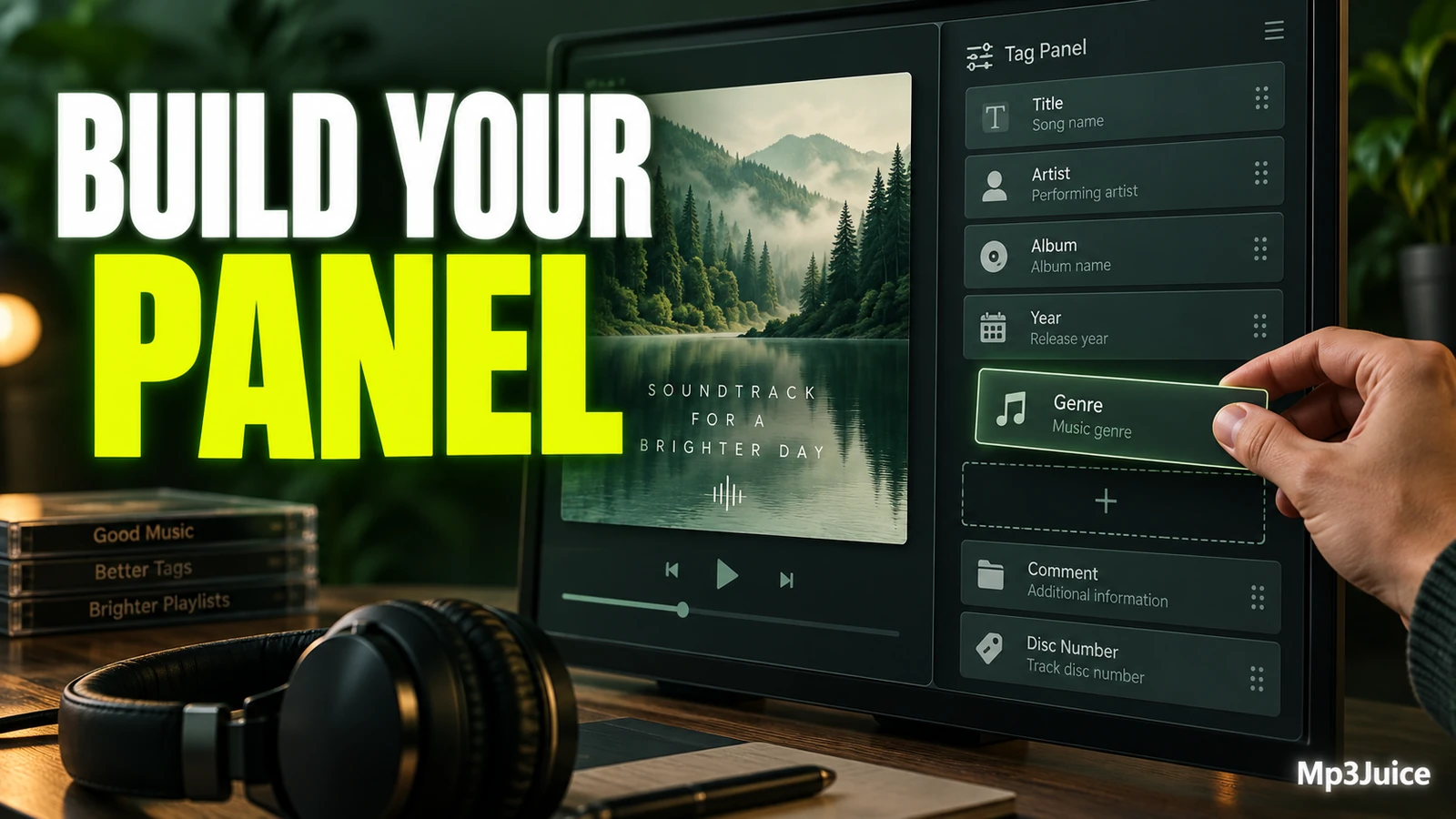
Mp3tag’s documentation describes the Tag Panel as the sidebar on the left of the File List for entering metadata. In its Tag Panel options, you can add, remove, rearrange, hide, and show fields. A configured field has a displayed name, a tag-field identifier, a type, and size settings. Saved Tag Panel configurations can be loaded again later.
A useful panel answers one practical question: what do I need to check before I apply an edit? For a simple album cleanup, that might be title, artist, album, album artist, track, year, genre, and cover art display. For a library with private notes, a comment or custom field may matter more than genre. For classical or soundtrack material, you may need fields that match your own cataloging habits. The important part is that the panel reflects the job, not a general wish to see everything.
Choose fields by task
Start with the job you are doing. A crowded Tag Panel can make mistakes easier because it presents more places where a value can be typed, pasted, or applied to a selection. A compact panel is usually safer.
For a general music-library review, a practical field set may include:
- Title, because it identifies the individual track.
- Artist, because it may differ from track to track.
- Album, because it is often shared by a release group.
- Album artist, especially where compilations or featured artists are involved.
- Track, and disc-related information if you already maintain it.
- Year, if your collection uses year consistently.
- Genre, only if it is part of your real tagging practice.
- Comment or another notes field, if you actually review or write notes during this task.
If your workflow uses identifiers such as ISRC, or a private field such as a review status, add it only when it supports the current review. A field can be technically useful and still be wrong for today’s panel. Every added control asks for attention, and every visible editable field is one more place to make a batch-edit mistake.
If you only need to compare values across many files, consider doing that outside the Tag Panel workflow. The Tag Panel is best reserved for fields you may intentionally inspect and edit, not every property you might want to glance at once.
Arrange for safe review
Order the fields to match the way you confirm a file. Put identity fields first, shared release fields next, and optional workflow notes later. A practical order is:
- Title, because a wrong title is usually noticed quickly.
- Artist, because it confirms the track-level credit.
- Album, because it shows whether the selection belongs together.
- Album artist, because it helps you treat compilations more carefully.
- Track and disc fields, because ordering checks make more sense after identity is clear.
- Year and genre, because these are often consistency decisions.
- Comments or custom notes, because they are usually secondary to basic identification.
Use visual separation only when it helps you slow down. A break between basic release information and optional notes can remind you that the lower group is not part of the minimum album edit. If a field is used for longer text, configure it so you can actually read the value you are reviewing. If a field is short and predictable, it does not need to dominate the panel.
When you choose labels, make them plain. A label should tell you what decision you are making. If two labels look similar, rename them in a way that reduces confusion between track-level and album-level information. Do not rely on memory during repetitive work.
Protect existing values
The highest-risk moment is working with several files selected. You may intend to change one shared album value but accidentally put the same value into a field that should remain different for each track. Build a routine that makes you inspect first and type second.
Before a batch edit, click through individual files and note what varies. Then select a small group from the same release and look again. Record what should be shared, what should differ, and what you are unsure about. A simple note can prevent a rushed edit later:
| Field | Expected behavior | What to check |
|---|---|---|
| Title | Different per track | Do not replace with one shared value. |
| Artist | May differ | Check compilations and featured artists. |
| Album | Often shared | Confirm all selected files belong together. |
| Album artist | Often shared | Confirm your compilation convention before editing. |
| Comment | Workflow-specific | Check whether old notes should be preserved. |
In Mp3tag’s Tag Panel field configuration, the documented default value is automatically filled when multiple files are selected and is usually set to < keep >. Treat that conservatively. Do not replace a protective default with a convenient fixed value unless you have tested the behavior on copies and know that it matches the job.
Use this read-before-write routine:
- Select one file and inspect the fields you plan to edit.
- Select a few related files and identify which values are shared and which are track-specific.
- Edit only fields that should receive the same value for the current selection.
- Reselect files after the edit and inspect the fields again.
- For high-value files, test first on a copied folder rather than your only working set.
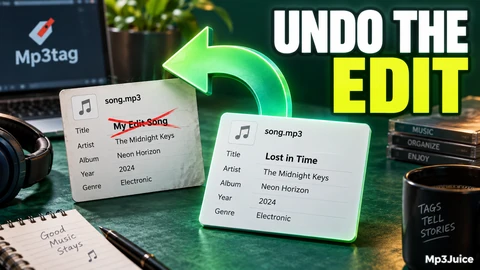
If you need to reverse a recent mistake, see Undo a Tag Edit in Mp3tag.
Example review layout
Example: Maya, a fictional user, is organizing a folder called “Road Trip Imports.” It contains complete albums, stray singles, and tracks from a various-artists compilation. She wants a panel that helps her review the files without pushing one artist name into every track.
Her first layout is deliberately small: Title, Artist, Album, Album Artist, Track, Year, Genre, Comment, and cover art display. Title and Artist come first so she can identify the selected file before touching release-level fields. Album and Album Artist come next because the compilation tracks need shared release context while preserving different track artists. Comment is last because it is used only for short source notes.
Maya does not add every field she has seen in her library. She leaves out rarely used custom fields because this session is about correcting imported files, not redesigning her catalog. She also avoids a fixed genre default because the folder mixes different kinds of music.
Her review is staged. First she selects one compilation track and checks Title, Artist, Album, and Album Artist. Then she selects three compilation tracks together and edits only the fields that should be shared. Next she tests the same operation on a copied mini-folder. After reselecting those copied files, she confirms that the track artists still differ where they should. Only then does she repeat the process on the main folder.
The exact field list is not the lesson. The lesson is that the panel supports a decision path: identify the track, confirm the release context, then handle optional notes.
Save task layouts
Different tagging jobs can deserve different Tag Panel layouts. A quick album cleanup panel can be smaller than a layout for archival notes. Saving a configuration lets you return to a known arrangement instead of rebuilding it from memory.
Create layouts around real jobs:
- Album quick check: title, artist, album, album artist, track, year, genre, and cover art display.
- Compilation review: title, artist, album, album artist, track, and any notes field you actively use.
- Classical review: composer-related and work-related fields only if they are part of your actual tagging system.
- Notes workflow: fewer identity fields and more room for a comment or custom note field.
Name configurations by purpose. “Panel 2” does not tell you what assumptions it carries. “Compilation review” or “Album quick check” is easier to trust later. If you share a computer or move between work sessions, the name should remind you what the layout exposes and what it intentionally leaves out.
Temporary hiding is useful when a field is not needed today. Hiding a field cleans the current task without turning the layout process into a permanent decision. Removing a field from the panel is also a layout change, not a reason to assume the corresponding metadata has been removed from files.
Check before batch edits
Before a broad edit, make a small working copy of representative files: one ordinary album track, one compilation track if present, one file with notes, and one file whose tags look unusual. Use that copy to confirm that the Tag Panel exposes the fields you expect and that your edits affect only the intended values.
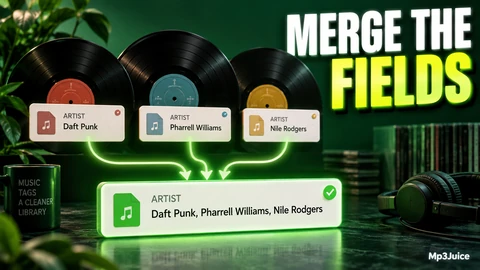
After saving changes on the copy, reselect the files and inspect the panel again. Record what changed, what stayed different, and whether any field surprised you. If you discover duplicate or conflicting values during the review, pause before applying more edits and consider whether Merge Duplicate Tag Fields in Mp3tag is the more relevant next step.
Keep the rule simple: customize the Tag Panel to reduce decisions, not to automate trust. A good layout makes important fields easier to see, keeps rarely used fields out of the way, and encourages a slow check before any batch edit.
You can look up the next song for your collection on Mp3Juice. After adding a permitted file locally, use your customized panel to review the fields that matter to your library.