How to Download MP3 Files with Mp3Juice
At a glance
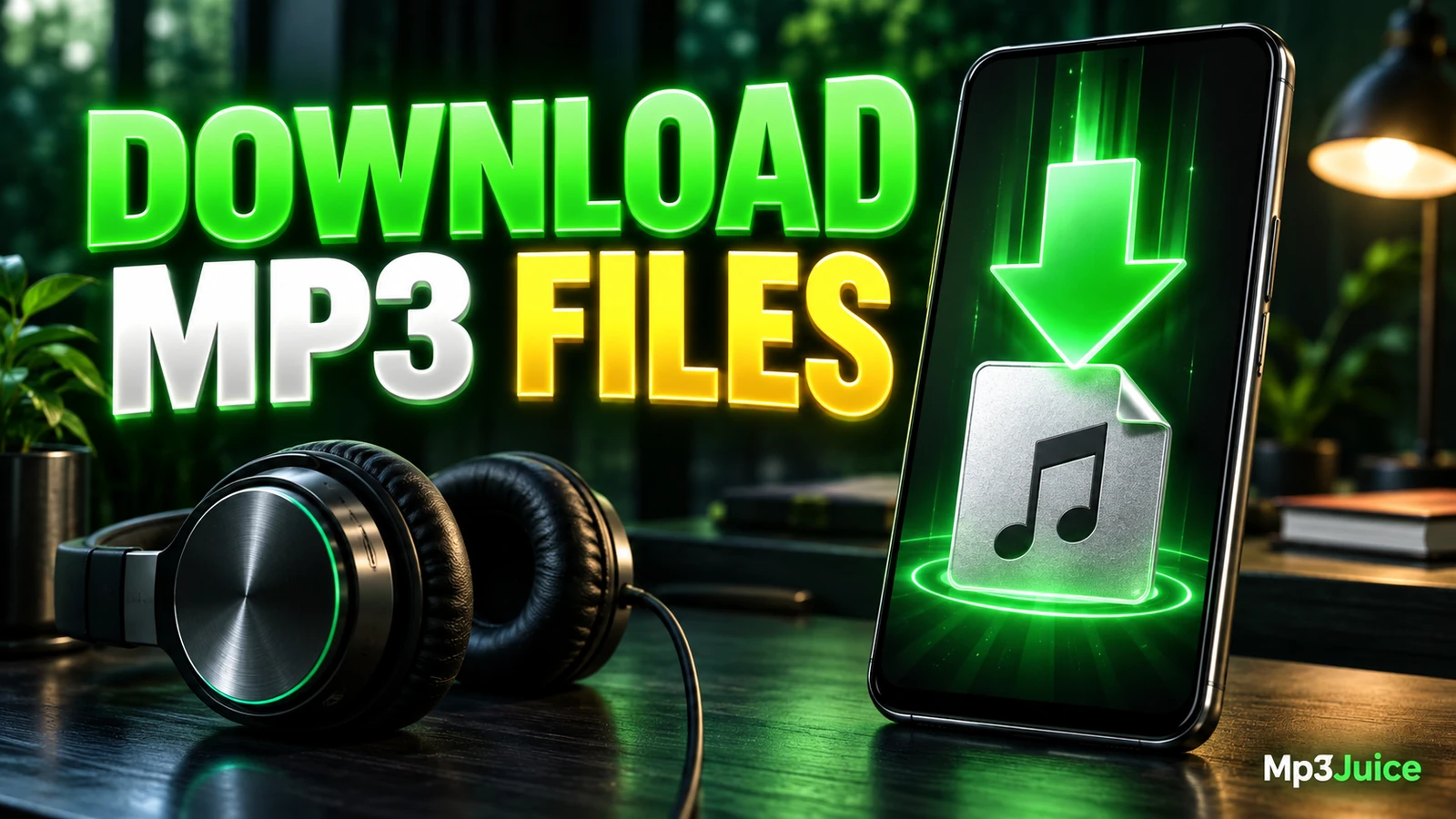
To download an MP3 with Mp3Juice, search a title, artist, or YouTube URL, open the result’s Download control, choose MP3, then confirm the browser transfer and play the saved local file. Avoid Download Now ads.
In this guide
To download an MP3 file with Mp3Juice, search by song title, artist name, or an individual YouTube URL, open the result’s Download control, choose MP3 rather than MP4, and then confirm the saved file in your browser or Downloads folder. Do not treat a Download Now advertisement as the format button. The workflow is complete only when a local audio file has finished downloading and plays from your device.
Step-by-Step: From Search to Completed File
Begin on the Mp3Juice homepage. Type a song name, artist name, or paste an individual YouTube video link into the search field. The Paste button can use browser clipboard access if permission is available. If your browser blocks that permission, manual paste still works. Submit the form with the button labeled Download.
After navigation to the results page, the search input may be empty again. That does not mean the search failed. Look at the listed recording titles and choose the result that best matches the track you wanted. If a Play option is available, use it only as a preview. A preview is not a finished MP3 file and does not prove that a downloadable file has been saved.
For the selected result, click its Download control. This opens choices for MP3 and MP4. Choose MP3 for an audio file. The MP3 choice opens a third-party converter embedded below the selected recording. Follow the available file download control inside the converter and wait for your browser to finish the transfer.
MP3, MP4, and Promotional Buttons
The result Download control is the part of the Mp3Juice workflow that opens MP3 and MP4 choices. MP3 is the audio format choice. MP4 is a container commonly used for video with audio, though size and contents vary by source and conversion service. Do not assume every MP4 is larger or that every MP3 will have identical quality.
The page may also show a Download Now button or similar promotional message. In this workflow, Download Now is advertising, not the site’s MP3-versus-MP4 format selector. Do not follow an advertisement as if it were the music download. If an unexpected page, offer, installer prompt, or suspicious pop-up appears, close it with the browser tab or window controls rather than trusting fake close buttons inside the page.
For related audio-focused pages, see MP3 Downloader and YouTube to MP3. If your source is a video link and you want a broader conversion walkthrough, the Mp3Juice YouTube to MP3 Guide for Audio Conversion covers that narrower scenario.
Confirm the Browser Download
A download option appearing on the page is not the same as a completed file. Completion is a browser and filesystem event. Watch the browser’s download status until it finishes, then open the saved location. A complete local audio file is different from a streaming page, a search result, a playlist entry, a cloud placeholder, or a link that still requires the website to play.
- Chrome on desktop: Use the browser’s Downloads area or Download history to view transfers and reveal the saved file. Removing an item from download history does not remove the file itself.
- Safari on iPhone: Downloads may be found in Files, then Browse, then Downloads. Safari’s download control can also show status and provide access, but the configured destination can vary.
- Chrome on Android: Open Chrome’s menu and choose Downloads, or check the device file manager for the saved item.
Downloaded MP3 files are not automatically imported into Apple Music or another library app. If you want the track in a media library, first confirm the file exists and plays, then import or move it according to that app’s normal process. Copy before tag edits or library moves so you can recover if an edit goes wrong.
Verify Playback and File Health
Open the saved file from its folder with a media player on your device. Play enough of the beginning, middle, and end to catch obvious truncation, silence, or corruption. If it plays locally with network access turned off, you have stronger evidence that the file is stored on your device rather than merely streaming from a page.
Do not rely on the filename extension alone. A name ending in .mp3 cannot prove the format, completeness, quality, or safety of the file. A zero-byte file, an extremely tiny file for a full song, or a track that stops early suggests a failed or partial download. If the browser or operating system shows a dangerous download warning, treat it as a stop signal and keep built-in protection enabled.
Third-party converter availability can vary. If an embedded converter fails to load, the final file download control never appears, or the saved file is broken, the issue may be temporary or specific to the chosen result. For repair-oriented steps, use How to Fix Mp3Juice Download Errors and Broken MP3 Files.
Decision Table: Which Click Means What
| Action | Likely Meaning | What to Do Next |
|---|---|---|
| Enter a title, artist, or YouTube URL and click Download | Starts the search | Review recording titles on the results page |
| Click Play on a result | Opens a preview when available | Use it to check the match, not as proof of a saved file |
| Click the result’s Download control | Opens MP3 and MP4 choices | Choose MP3 for an audio download |
| Use the file download control in the embedded converter | Starts or offers the actual file transfer | Wait for browser completion and find the saved file |
| Click Download Now advertising | Leads away from the music workflow | Do not use it as the format selector |
| Close the browser before the transfer finishes | May cancel or leave a partial file | Restart only if you are confident the source and action are legitimate |
Legal and Platform Limits
A result appearing in search does not establish song ownership, copyright permission, platform permission, or file safety. Publicly accessible or no-cost music is not automatically free to copy, share, upload, or reuse. Protected compositions and sound recordings can involve different rights, and local exceptions or licences differ by country.
YouTube’s terms restrict downloading except where the service authorizes it or permission is otherwise specified. Platform terms are separate from copyright exceptions, so the answer is not always simply legal or illegal in every situation. This article is general educational information, not legal advice. If your use is uncertain, seek qualified local advice and review the site’s Copyright information.
Quick FAQ
Where do I find the MP3 on iPhone?
If you used Safari, check Files, then Browse, then Downloads, or use Safari’s download control. The exact destination can change if your device or browser is configured differently.
Is Download Now the right button?
No. In this workflow, Download Now is promotional advertising. Use the selected result’s Download control, choose MP3, then follow the embedded converter’s file download control if available.
Can I repeat the same download later?
Not always. Results and embedded converter availability can vary. Keep the completed local file if you need it, and confirm playback before reorganizing your library. For desktop-specific steps, see How to Use Mp3Juice on Windows and Mac.