Connect a DJ Controller to Mixxx 2.5
At a glance
To connect a DJ controller to Mixxx 2.5, connect the controller before launching Mixxx, then in Preferences under Controllers, select your device, load and enable the appropriate mapping, and apply changes. Confirm basic control functions visually with practice tracks to ensure correct communication before using advanced features.
In this guide
To connect a DJ controller to Mixxx 2.5, connect the hardware, start Mixxx, open Preferences and Controllers, select the device, choose a suitable mapping from Load Mapping, tick Enabled, and click Apply. The key requirement is the mapping: without one that tells Mixxx how to interpret the controller, the hardware cannot be expected to control the software correctly.
Confirm support first
A DJ controller is not only a set of buttons, knobs, jog wheels, and faders. It sends messages that Mixxx must understand. A controller mapping is the translation layer between the hardware and Mixxx controls. If the wrong mapping is selected, the controller may do nothing, or some controls may behave differently from what you expect.
Mixxx 2.5 supports control by mouse, keyboard, MIDI or HID controllers, timecode media, or a combination. For controllers, the operating system must recognize the device, and Mixxx needs a MIDI or HID mapping. Mixxx includes certified mappings verified by the Mixxx development team and community-supported mappings that may have rough edges.
Before buying, borrowing, or setting up a controller, check whether your exact model has a bundled mapping in Mixxx 2.5. Do not rely only on a similar product name or the physical layout. Manufacturers sometimes sell related models with nearly identical panels, but their messages and intended functions can differ. Record the exact model name printed on the device and, if relevant, the edition or revision shown by the operating system.
If you already have the controller, separate two questions. First, does the computer recognize the hardware? Second, does Mixxx offer a mapping that matches it? If the device does not appear where Mixxx lists available controllers, look at connection, power, cable, port, and any driver requirements described by the controller maker. If the device appears but the mapping is missing or uncertain, treat that as a mapping support issue rather than a USB issue.
Connect before opening Mixxx
For a clean first setup, connect the controller before starting Mixxx 2.5. This follows the documented setup order and reduces ambiguity while you are checking whether the device appears in Mixxx. If the controller has a separate power supply or a required power sequence, follow the controller documentation. A lit controller is not proof that Mixxx has loaded a mapping or enabled it.
Use a simple physical setup for the first attempt. Connect the controller directly if possible, avoid unnecessary adapters during initial testing, and keep notes about what you used. If you later need a hub or a different cable, change only one thing at a time. That way, if the controller disappears from the device list, you have a clear recent change to investigate.
When Mixxx opens, do not start by pressing every control. First confirm that the controller is listed in the controller preferences area. A careful setup order helps you distinguish between three common situations: the operating system has not recognized the hardware, Mixxx sees the device but no appropriate mapping has been selected, or the mapping is enabled but some controls do not match your expectations.
Load the mapping
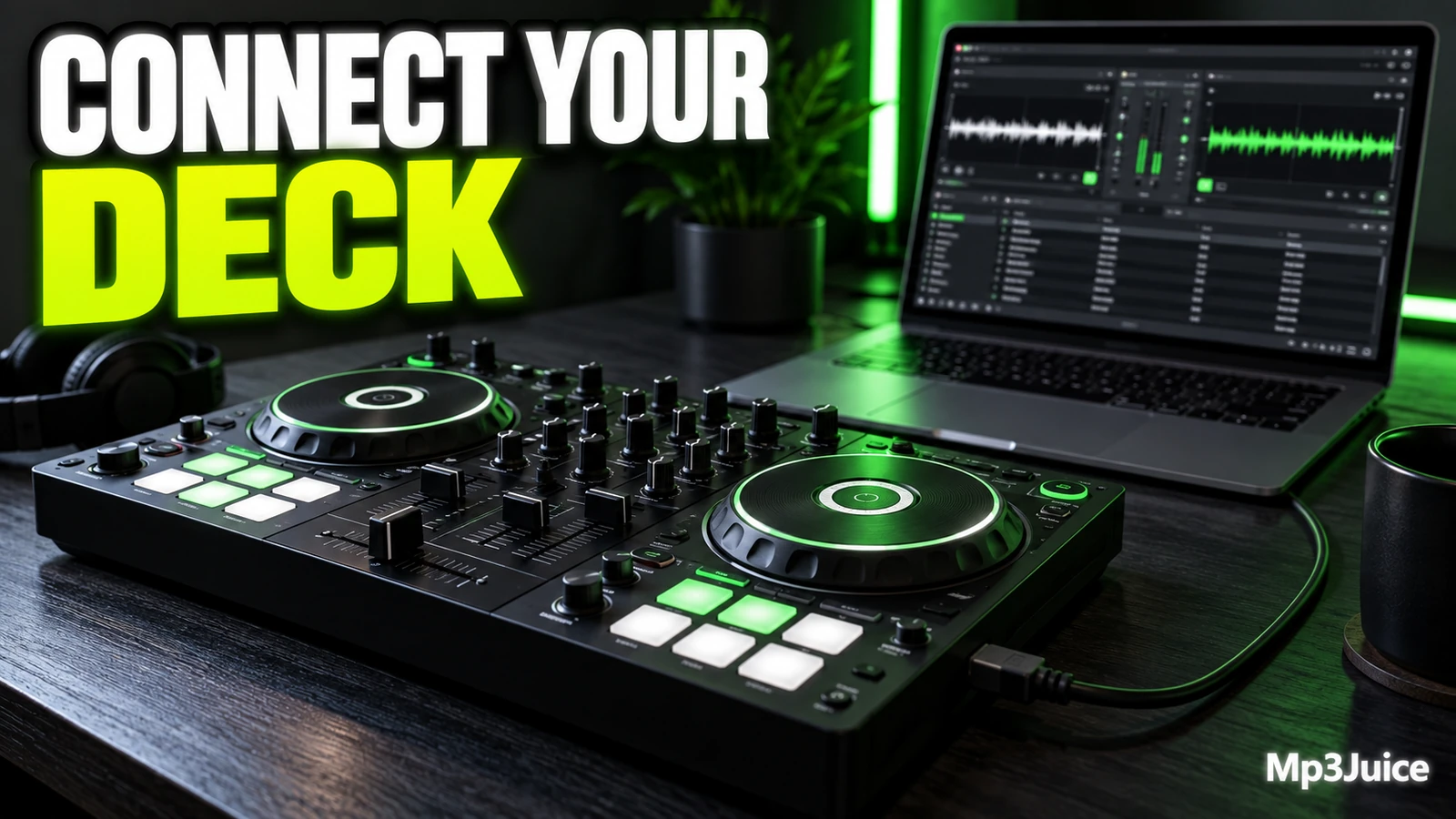
In Mixxx 2.5, controller setup is done from Preferences under Controllers. Select your device from the list of available devices on the left. The right pane changes for that device. Choose the controller mapping from the Load Mapping drop-down menu, make sure Enabled is checked, then click Apply.
- Connect the controller to the computer.
- Start Mixxx 2.5.
- Open Preferences, then Controllers.
- Select the device from the available devices list on the left.
- Select the mapping from Load Mapping.
- Tick Enabled.
- Click Apply.
If you use more than one controller, repeat the selection, mapping, enablement, and apply steps for each device. This matters for modular setups, such as a main two-deck controller plus a separate pad controller. Do not assume that enabling one device enables every connected controller.
For a first connection, prefer a mapping that is already bundled with Mixxx 2.5 and matches the device. A certified mapping and a community-supported mapping are not the same category. A certified mapping has been verified by the Mixxx development team. A community-supported mapping has been provided and reported working by the community, but the development team may not be able to verify the same level of quality for hardware they do not have.
This article does not walk through installing additional forum mappings or writing your own mapping. Those are separate tasks with their own risks and checks. If your controller has no suitable bundled mapping, pause the basic setup and decide whether you want to research mapping support, use keyboard and mouse control for now, or choose different hardware.
Test only core controls
After you click Apply, run a small test instead of trying every performance feature. The goal is to confirm basic communication and the most important mixing controls. Use practice tracks, keep volume at a safe level, and watch the on-screen controls while you move the hardware.
- Load a practice track into one deck using your normal Mixxx library workflow.
- Press play or cue on the controller and check whether the expected deck responds.
- Move one channel fader and watch whether the matching on-screen fader moves.
- Move the crossfader and check whether the on-screen crossfader follows.
- Turn one EQ knob slightly and confirm that the corresponding on-screen control changes.
- Try a jog wheel or pitch control only after the simpler controls respond consistently.
Do not use a listening check as proof that every control is mapped correctly. Hearing audio only shows that playback is happening through your current setup. It does not prove that every button, fader, knob, pad mode, or deck assignment is correct. The better first test is visual and procedural: move one hardware control, observe the matching Mixxx control, and write down anything that differs.
If nothing responds, return to Preferences and Controllers. Confirm the selected device, the mapping choice, the Enabled checkbox, and whether Apply was clicked. Also confirm that Mixxx still responds to ordinary mouse or keyboard input. That tells you whether the issue is limited to controller control or whether something broader is wrong with the session.
Example small setup check
Example: Maya is preparing a compact two-deck MIDI controller for practice in Mixxx 2.5. She connects the controller before opening Mixxx, starts the software, opens Preferences and Controllers, and selects her device from the left list. In the right pane, she chooses the mapping that matches the controller name, ticks Enabled, and clicks Apply.
She does not begin with pad modes or special functions. First, she loads one familiar track to deck 1 and another to deck 2. She presses play for deck 1 and watches the deck respond. She moves the deck 1 channel fader, then the crossfader, and compares each movement with the on-screen control. Finally, she turns one EQ knob slightly and returns it to its previous position by watching the on-screen control.
Her notes are short: device appeared, mapping selected, enabled, applied, play worked, channel fader followed, crossfader followed, EQ followed. If she later finds that a secondary button does something unexpected, she has already confirmed that the basic device connection and mapping are active. That narrows the next investigation to the specific control rather than the entire setup.
When controls do not match
If a hardware control moves the wrong on-screen item, or only part of the controller works, first check for a similar but incorrect mapping. Return to Preferences and Controllers, select the device again, and review the Load Mapping choice. Compare the device name carefully with the mapping name you selected.
When you test, record the mismatch in plain language. For example: “left channel fader moves deck 2,” “play button does not change anything,” or “EQ knob moves a different control.” Avoid changing several settings at once before writing this down. A clear observation is more useful than a vague conclusion such as “controller broken.”
If the controller is present but no suitable bundled mapping is available, choose a deliberate next step. You can continue with mouse and keyboard control while you research support, choose a controller that has a bundled Mixxx 2.5 mapping, or study controller mapping as a separate project. Do not turn a basic connection check into a trial of unknown files from unreviewed sources.
Some problems are not controller problems. If tracks do not align as expected, review the track preparation workflow instead of blaming the hardware. See Correct a Beat Grid in Mixxx 2.5. If EQ response feels unfamiliar, compare your expectations with the mixer behavior discussed in Choose Mixing Equalizers in Mixxx 2.5.
Prepare before playing
Make a repeatable pre-session checklist once the controller works. Connect the controller before opening Mixxx, open the controller preferences if you need to verify the device, confirm that the mapping is still enabled, load two practice tracks, and test play, cue, one channel fader, the crossfader, and one EQ band.
Keep the checklist short enough that you will actually use it. Write down the Mixxx version, controller model, selected mapping name, operating system, and any odd behavior you observe. Those notes help if you later troubleshoot, compare another computer, or decide whether a different controller would be easier to support.
Your next action is simple: connect the controller, open Preferences and Controllers in Mixxx 2.5, select the device, load the matching bundled mapping when available, enable it, click Apply, and test only a few essential controls before changing anything else.
A song you know well makes controller testing easier. Search for the recording on Mp3Juice, then use a permitted local audio file to check playback, cue points, and level changes.