Mp3Juice Guide for Fast Music Search and MP3 Access
At a glance
Use Mp3Juice fastest by starting with the clearest clue: song title, performer name, or an individual YouTube URL. Results must still be checked by title and preview when available, and an MP3 option is not a completed download until the browser saves the file.
In this guide
- Choosing Your Search Start: Title, Performer, or Link
- How the Three Starting Points Differ
- Identifying the Right Recording in Results
- Choosing Audio After Selecting a Recording
- Access to Options Is Not a Completed Download
- Example: Picking the Right Path to a Song
- Practical Safety and Permission Context
- Quick Answers About Fast Mp3Juice Search
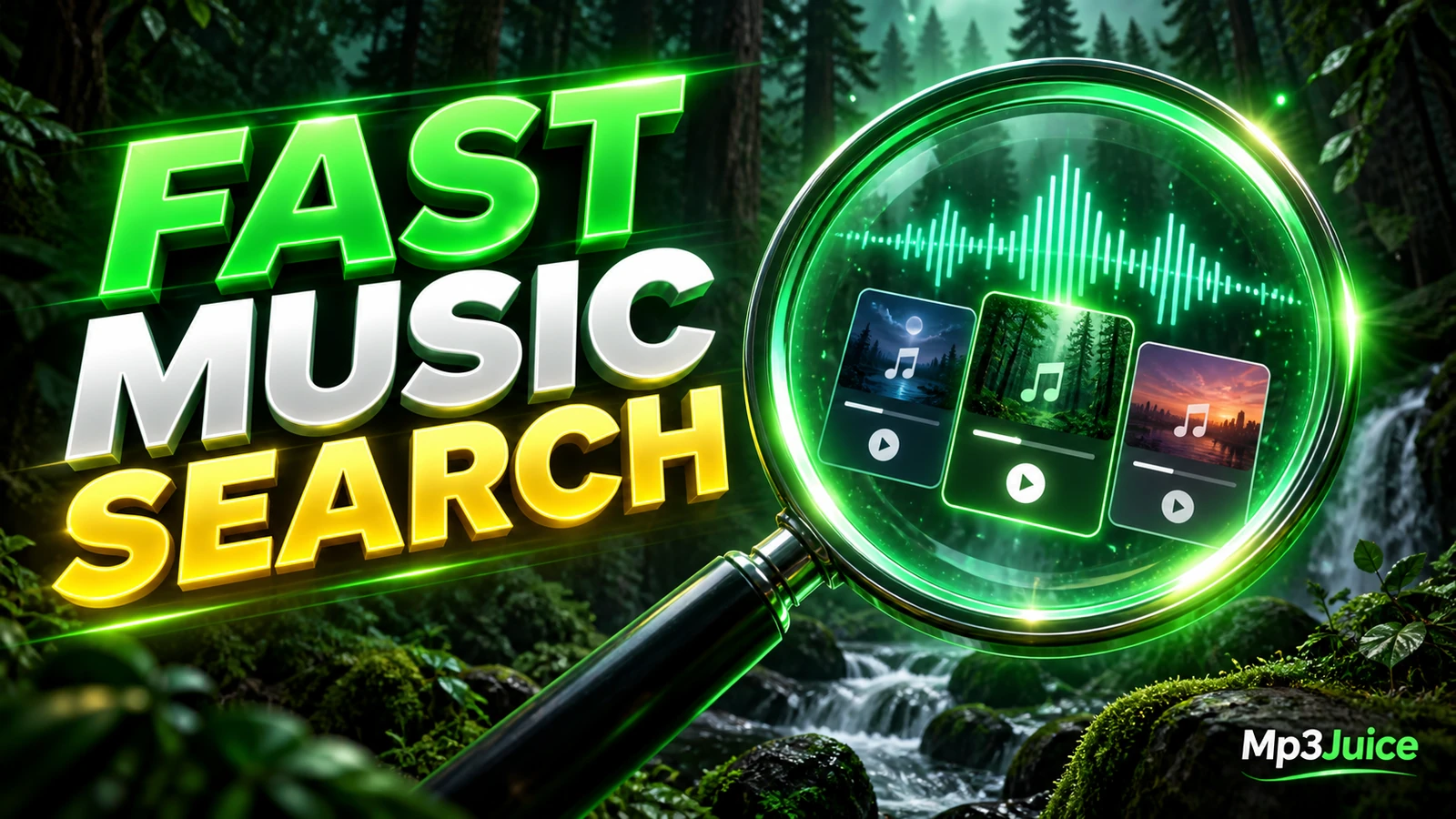
The fastest way to use Mp3Juice for music search is to start with the strongest clue you have: the song title, the performer name, or an individual YouTube URL. The homepage search form accepts all three, and it does not require an account for the search. Your main task is to choose the best starting query, identify the right recording in the results, then distinguish an available MP3 option from a completed file download.
Choosing Your Search Start: Title, Performer, or Link
A fast search begins before you press the homepage form button labeled Download. A remembered title, an artist name, and a saved YouTube link each lead to a different kind of result. Use the one that gives the search form the least ambiguous clue.
| What you remember | Search box input | Best for |
|---|---|---|
| "Haunted Avenue" (fictional title) | Type the full or partial song title | Known songs, distinctive titles, or title-first searches |
| "DJ Falconer" (fictional artist) | Type the performer name only | Browsing recordings connected to one artist when the title is uncertain |
| https://youtube.com/xxx123abc (fictional example) | Paste the individual YouTube URL | Looking for one specific online recording, live version, upload, or mix |
If you have the exact title, start there. If the title is common, add the performer name in your search or run a performer-only search next. If you saved a specific YouTube page, pasting that individual URL can be more direct than guessing how the recording title is written.
The homepage includes a Paste button that can use browser clipboard access. If the browser does not allow clipboard permission, manual paste still works. Unicode search terms are preserved, so accented names and non-Latin titles can be entered as written. The input is not a genre filter, a lyrics detector, or a country limiter.
How the Three Starting Points Differ
A title search is usually the quickest route when the name is unusual. For example, a fictional title such as Clocks at Midnight is more precise than a single common word. If a title has many covers, remixes, or uploads, you may need to compare recording titles carefully in the results.
An artist-only search is useful when you remember the performer but not the exact track name. It can also help when a song title is spelled differently across uploads. For deeper query tactics, see How to Search Songs on Mp3Juice More Accurately.
A YouTube URL search is best when the source page itself is the clue. Use it for a particular upload, live session, or version you already found. It should be an individual YouTube URL, not a playlist expectation or a request for batch downloading. Use one individual video link at a time.
Identifying the Right Recording in Results
After you submit a search, the results page shows recordings related to the input. The search field is empty after navigation to results, so you can start a new query if the first attempt is too broad. Results include recording titles, which are your first reference point for deciding whether you are looking at the intended song, version, or performer.
When available, Play provides a preview. A preview is helpful for checking whether the result sounds like the recording you wanted, but it is not the same as saving a local audio file. Listening can reveal obvious problems such as the wrong song, silence, a poor live recording, or a mislabeled upload. It cannot prove that a file will be complete, safe, or identical to a source master.
The result's Download control is the route to format choices. Treat this as access to options, not proof that a file already exists on your device. If several results have similar names, preview first when possible, then choose the recording whose title and sound match your intended track.
Choosing Audio After Selecting a Recording
After you select Download for a result, MP3 and MP4 options may appear. MP3 is the audio-focused option. MP4 is a container commonly used for video with audio, though not every MP4 is identical in size or structure. If your goal is an audio file for local listening, choose the MP3 path when it is available.
Selecting Download MP3 opens a third-party converter embedded below the selected recording. Availability and response can vary because that conversion step is handled by an embedded service. The presence of the embedded converter means you have reached the conversion area, not that the browser has completed a download.
Be careful around promotional elements. A visible Download Now button may appear, but it is a promotional outbound link, not the site's format-selection control. Do not treat an advertisement as the music download. Stay with the result's Download control and the MP3 or MP4 options connected to the selected recording.
For a more task-focused explanation of audio access, see the Mp3Juice Music Downloader Guide for Quick Audio Access. For related service context, the MP3 Downloader page and YouTube to MP3 page explain audio-oriented entry points without changing the basic need to verify the selected recording.
Access to Options Is Not a Completed Download
One of the most common mistakes is to think that an MP3 option, a converter panel, or a file label means the audio is already saved. A completed download is a browser and filesystem event. It happens when your browser starts and finishes saving the file to a chosen or configured download location.
A local audio file is different from a streaming page, a search result, a playlist entry, a cloud placeholder, or a link you can revisit later. If you close the page before the browser saves the file, you may have accessed the option without obtaining the file. If you only see more options or advertising, the MP3 is not necessarily being saved.
The filename extension .mp3 is useful, but it is not a guarantee of format, completeness, quality, or safety. A file may be mislabeled, incomplete, corrupted, or lower quality than expected. MP3 is a lossy audio format, and re-encoding cannot restore sound information that was already removed in an earlier encode.
Bitrate numbers, when you encounter them elsewhere, should be understood carefully. Bitrate is not the same thing as sample rate or bit depth. As a simple size illustration, a four-minute constant-bitrate MP3 is about 3.84 MB at 128 kbps, 5.76 MB at 192 kbps, and 9.60 MB at 320 kbps, excluding metadata. These are general calculations, not promises about files offered through Mp3Juice, and there is no guaranteed 320 kbps selector.
Example: Picking the Right Path to a Song
Suppose you heard the fictional song Clocks at Midnight by the fictional artist Silas Tyne in a video. You have three sensible starting paths.
- Type Clocks at Midnight if the title is the clearest clue. This is efficient when the title is distinctive.
- Type Silas Tyne if you are unsure about the title or want to compare several listed recordings by the same performer.
- Paste the individual YouTube URL if you saved the exact upload and want that particular version.
Once results appear, read the recording titles and use Play when a preview is available. Choose Download only for the result that matches. Then choose MP3 if your goal is audio. Wait for the browser's own download process to begin and complete. Until the file is actually saved, you have reached an option, not a finished local copy.
Practical Safety and Permission Context
Search results do not establish ownership, copyright permission, or safety. A track being accessible at no cost does not automatically mean it is free to copy. Copyright rules vary by country, and protected music may involve rights in both the composition and the sound recording. Permission, a licence, or a relevant legal exception may be needed. The Copyright page provides general site context, but uncertain uses require qualified local advice.
Keep normal browser protections enabled and treat dangerous download warnings as stop signals. If a page or pop-up looks suspicious, use the browser's tab or window controls rather than trusting a fake close button. Incognito or private browsing does not make activity invisible to websites or network operators, and downloaded files can remain after the session ends.
For site data practices, use the Privacy Policy. Avoid assuming that any search result, advertisement, or embedded converter carries a special safety certification, ownership guarantee, or quality guarantee.
Quick Answers About Fast Mp3Juice Search
Do I need an account to search?
No. The homepage search form can be used without creating an account or making a payment.
Can I search by genre or lyrics?
No genre filtering buttons or automatic lyrics identification are provided. Use the title, performer name, or an individual YouTube URL.
Does Download Now start the real MP3 download?
No. Download Now is a promotional outbound link, not the MP3 format-selection control. Use the selected result's Download control and MP3 option.
Where should I learn the full workflow?
This page is an overview for choosing the right search start and recognizing the right recording. For a full procedural walkthrough, use How to Use Mp3Juice Step by Step.