How to Use Mp3Juice Step by Step
At a glance
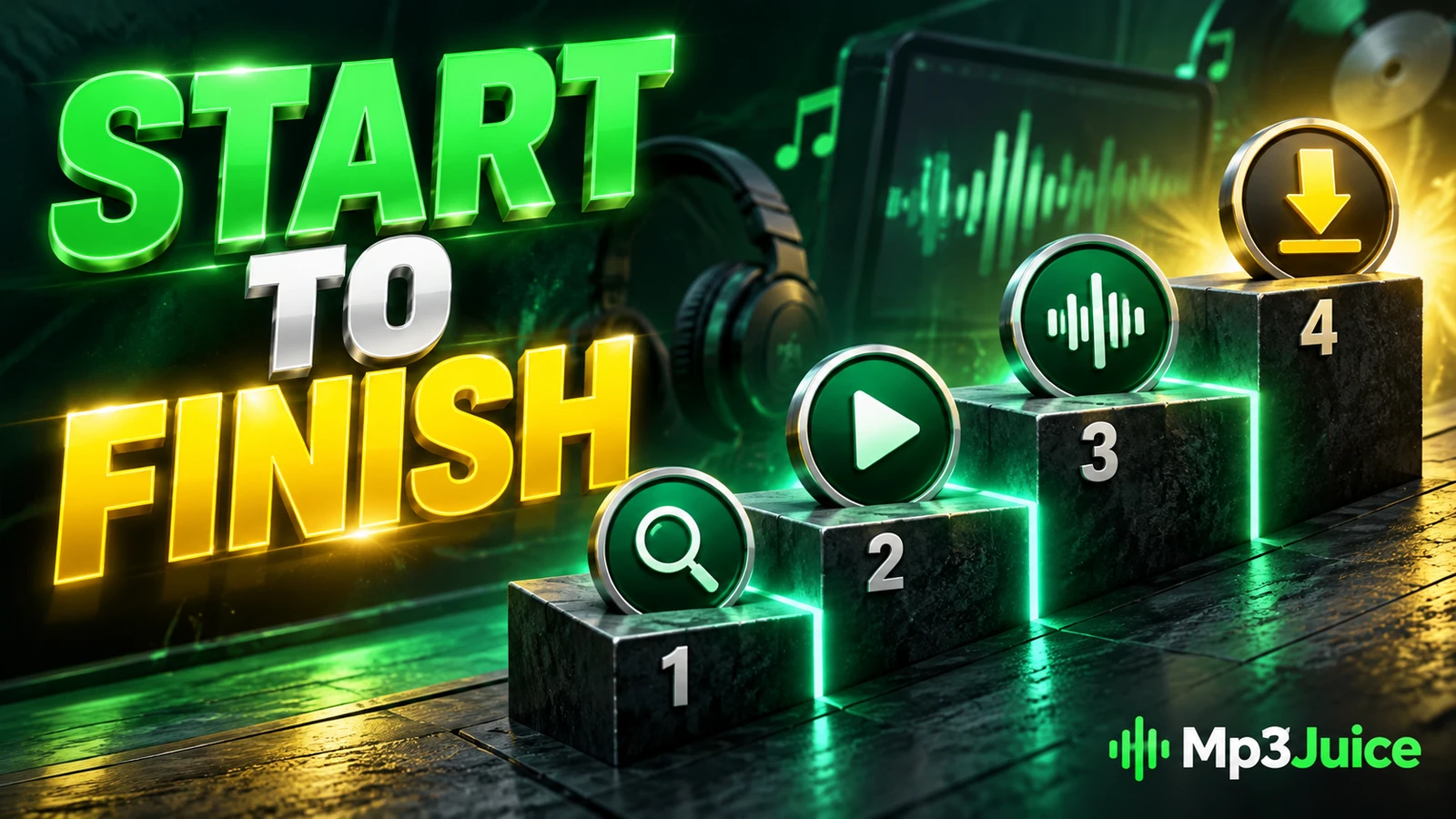
Use Mp3Juice by searching from the homepage, opening the matching result’s Download options, selecting Download MP3, and waiting for your browser to finish saving the file. Ignore Download Now ads, stop on warnings, and confirm the completed local MP3 in your downloads location.
In this guide
- Step 1: Open the Homepage and Enter the First Search
- Step 2: Read the Results State Before Clicking Anything
- Step 3: Click the Result Download, Not Download Now
- Step 4: Select the MP3 Option Under the Recording
- Step 5: Wait for the Browser Download to Finish
- Step 6: Use the Completed File Carefully
- Step 7: Quick Click Map for This Example
To use Mp3Juice step by step, start on the homepage, enter a song title, artist name, or individual YouTube URL, press the form’s Download button, choose the matching result, select Download MP3, and wait until your browser saves a completed file. The homepage search does not require an account. This walkthrough follows one fictional first use from search to saved file, including the point where a Download Now advertisement should not be treated as the music download.
Step 1: Open the Homepage and Enter the First Search
Lila, a fictional first-time visitor, opens her laptop browser and goes to Mp3Juice. She sees the main search form on the homepage. The search field accepts a song title, an artist name, or an individual YouTube URL. Lila is looking for a made-up song called Fictional Sunrise by a made-up artist named Alex Dreamer, so she clicks inside the empty search field and types Fictional Sunrise Alex Dreamer.
Next to the search field, the form action is labeled Download. That word can look surprising on a first visit because Lila has not chosen a recording yet, but at this stage it starts the search from the homepage. She presses that Download button once.
If Lila had copied a YouTube video URL instead, she could have used the visible Paste button. That button relies on browser clipboard access. If the browser does not allow clipboard permission, she can still click inside the search field and paste manually with the keyboard or browser menu. In this example, she is not using a URL, so typing the title and artist is enough.
Step 2: Read the Results State Before Clicking Anything
The page changes to a results view. Lila notices one important state change: the search input is empty after navigation. That does not mean her search was lost. It means she has moved from the homepage form to the results page, where recordings are listed below.
She sees result rows with recording titles. One row reads Fictional Sunrise - Alex Dreamer, matching the title and artist she intended. A Play control may appear where preview is available. Lila uses it briefly to confirm that the recording sounds like the one she wanted. A preview is only a preview, not a saved file, so she does not stop there.
Her first stop condition appears here: if every visible title is clearly unrelated, she should not continue to the download controls. She can return to the search field and try a cleaner query, such as only the song title plus artist name, or paste the exact individual YouTube URL if that is the source she meant to use. For this fictional example, the first visible result is the intended recording, so she continues.
Step 3: Click the Result Download, Not Download Now
On the result row for Fictional Sunrise - Alex Dreamer, Lila sees a Download control beside the recording title. Nearby, she also notices an ad-style message that says Download Now. The wording is similar, but the roles are different.
- Download beside the recording title is the site control that opens format choices for that selected result.
- Download Now in a promotional area is an outbound advertisement, not the site’s MP3 or MP4 format selector.
Lila clicks only the Download control attached to the chosen recording row. She does not click Download Now. If an advertisement opens another tab, shows an unrelated offer, or tries to pull her away from the selected recording, that is a stop condition for the music task. She returns to the original result tab and uses the result-row control instead.
This distinction matters because the page can include third-party advertising. A promotional button may look urgent, but it is not proof that a music file is ready. Lila’s goal is to expand the options under the selected recording, not to follow an unrelated offer.
Step 4: Select the MP3 Option Under the Recording
After Lila clicks the correct result-row Download control, a set of choices opens for that recording. The visible options include Download MP3 and Download MP4. She wants an audio file, so she chooses Download MP3.
At that point, a third-party converter area is embedded below the selected recording. Lila may see a loading message, a progress state, or a new embedded panel while that service prepares the file. Availability can vary, so she waits for a real downloadable file control to appear rather than assuming the file is complete as soon as the MP3 option is visible.
She also keeps the format choice realistic. The MP3 option means she is requesting MP3 audio, but the page does not establish a guaranteed bitrate selector or a guaranteed 320 kbps output. An .mp3 filename extension is helpful for recognizing the intended file type, but the extension alone cannot prove completeness, quality, or safety. The practical proof of completion comes later, when the browser finishes saving the local file.
If the embedded service does not load, returns an error, or never provides a final file control, Lila stops this attempt instead of repeatedly clicking ads. She can try the search again, choose a different matching recording, or consult Mp3Juice not working fixes for search and download problems.
Step 5: Wait for the Browser Download to Finish
When the converter area finally shows the actual file download control, Lila clicks it once. Now the task moves from the web page to the browser. A file is not saved merely because an MP3 option appeared, and it is not saved merely because a preview played. Download completion is a browser and filesystem event.
In Chrome on her laptop, Lila watches the browser’s download shelf, bubble, or download history. When the transfer completes, she opens the downloaded item from the browser list and also checks her computer’s Downloads folder. The fictional saved file is named Fictional_Sunrise_Alex_Dreamer.mp3. She confirms that it is a local file, not a streaming page, a playlist entry, a bookmark, or a cloud placeholder.
If she were using an iPhone or iPad, the file location would depend on the device’s configured download destination. A common place to check is the Files app under Browse and Downloads, and Safari’s download control can show download status and access. A downloaded MP3 is not automatically imported into Apple Music. On Android with Chrome, the browser menu’s Downloads area is a common place to review downloaded files.
Lila’s success condition is simple: the browser reports the transfer finished, and she can find a local audio file in the download location. If the browser shows a dangerous download warning, blocks the file, or says the transfer failed, she treats that as a stop signal and does not try to bypass the protection.
Step 6: Use the Completed File Carefully
Lila opens the completed Fictional_Sunrise_Alex_Dreamer.mp3 in a compatible audio player. It plays from local storage, so she knows the walkthrough has reached its intended endpoint: search, result selection, MP3 option, third-party conversion area, browser transfer, and saved file.
She does not delete any original music library files while checking the new download. If she plans to edit tags or move the track later, she copies it first. A complete local audio file is different from a link or page that only streams audio, and keeping a copy before organizing prevents accidental loss.
She also keeps permission in mind. A search result does not prove ownership, copyright permission, or a licence to copy a song. Protected works generally require permission unless a local exception or licence applies, and composition rights can differ from sound recording rights. Public access or no-cost access is not a universal permission to download. For general site terms, see Copyright.
If unwanted pop-ups appear during any part of the process, Lila closes suspicious pages with the browser’s tab or window controls rather than trusting a fake on-page close button. She keeps browser protection enabled and avoids following offers that are unrelated to the selected recording.
Step 7: Quick Click Map for This Example
| Visible state or control | What Lila does | Stop condition |
|---|---|---|
| Homepage search field | Types Fictional Sunrise Alex Dreamer and presses Download | Stops if she entered the wrong title or URL |
| Results page with empty search input | Checks recording titles and uses Play if available | Stops if the results do not match the intended song |
| Download beside the recording title | Clicks it to open MP3 and MP4 choices | Stops if she is being led away by an advertisement |
| Download Now in an ad area | Ignores it | Does not follow it as a music download |
| Download MP3 | Selects it and waits for the embedded converter area | Stops if no real file control appears |
| Browser download complete | Finds the saved local MP3 in the downloads location | Stops if the browser warns, blocks, or fails the transfer |
For a broader search explanation, read the Mp3Juice guide for fast music search and MP3 access. For a download-focused companion article, see How to download MP3 files with Mp3Juice. If you are starting from a direct video URL, the YouTube to MP3 page covers the matching service path, while MP3 Downloader is a related landing page for audio access.