Record a Practice Mix in Mixxx 2.5
At a glance
Choose a recording destination, check your levels, and record a short practice mix in Mixxx 2.5. Stop and replay the saved recording to assess specific transitions or level changes. Keep practice files organized and choose one issue to improve in the next session instead of judging the entire mix at once.
In this guide
Use Mixxx 2.5 recording to capture a practice set made from your own or otherwise permitted material, then listen back for specific performance issues. Recording is evidence. It does not repair clipping, uneven gain, rushed phrasing, or crowded track choices. Treat the file as a review copy of what happened during the take.
Before you record
Decide what the recording is meant to test before you press record. A useful practice take usually has one main purpose: phrase timing, EQ movement, level discipline, cue choices, or the shape of the set across several tracks. If you try to judge everything at once, the review can become vague.
Mixxx 2.5 can record a mix as an audio file. By default, it records the main output. With an external mixer setup, Mixxx can instead record an external mixer output when the Record/Broadcast input is configured in Preferences > Sound Hardware. Recording settings are found in Preferences > Recording, including format, quality, directory, splitting, cue files, and metadata.
Keep the workflow simple: prepare the tracks, verify where the file will be saved, record one complete pass, then review the result as if you were listening to another DJ. The value comes from hearing the whole performance, including the parts that felt uncomfortable while you were playing.
If your setup includes a controller, make sure it is working before starting a serious recording pass. For setup help, see Connect a DJ Controller to Mixxx 2.5. Recording is easier to evaluate when deck control, transport, and monitoring already feel predictable.
Set the recording destination
Before recording, open Preferences > Recording and check the recording settings. For a private practice review, the default may be enough. If you record often, choosing a clear destination can make later review much easier.
A good destination is easy to find, has enough free space, and is not mixed into unrelated downloads or exports. You do not need a complicated archive. A folder named by month, project, or practice theme is usually enough. For example, a practice folder might be named for house transitions, warmup drafts, or a specific rehearsal goal.
Use these checks before the first full take:
- Confirm the folder. If you use a custom recording directory, verify it in Preferences > Recording. If you leave the default, know where Mixxx is saving recordings before you begin.
- Choose settings deliberately. Mixxx offers recording format and quality settings. Pick settings that suit your review workflow, then avoid changing them casually between comparable takes.
- Decide whether splitting or cue files are useful. They may help with longer practice recordings, but a short transition drill may not need them.
- Make a short trial recording. Record a brief permitted audio test, stop, and confirm that the file appears where expected before committing to a long set.
This small test prevents a common practice problem: performing a strong take, then wasting time searching for the file or discovering that the destination was not the one you expected.
Start and stop a take
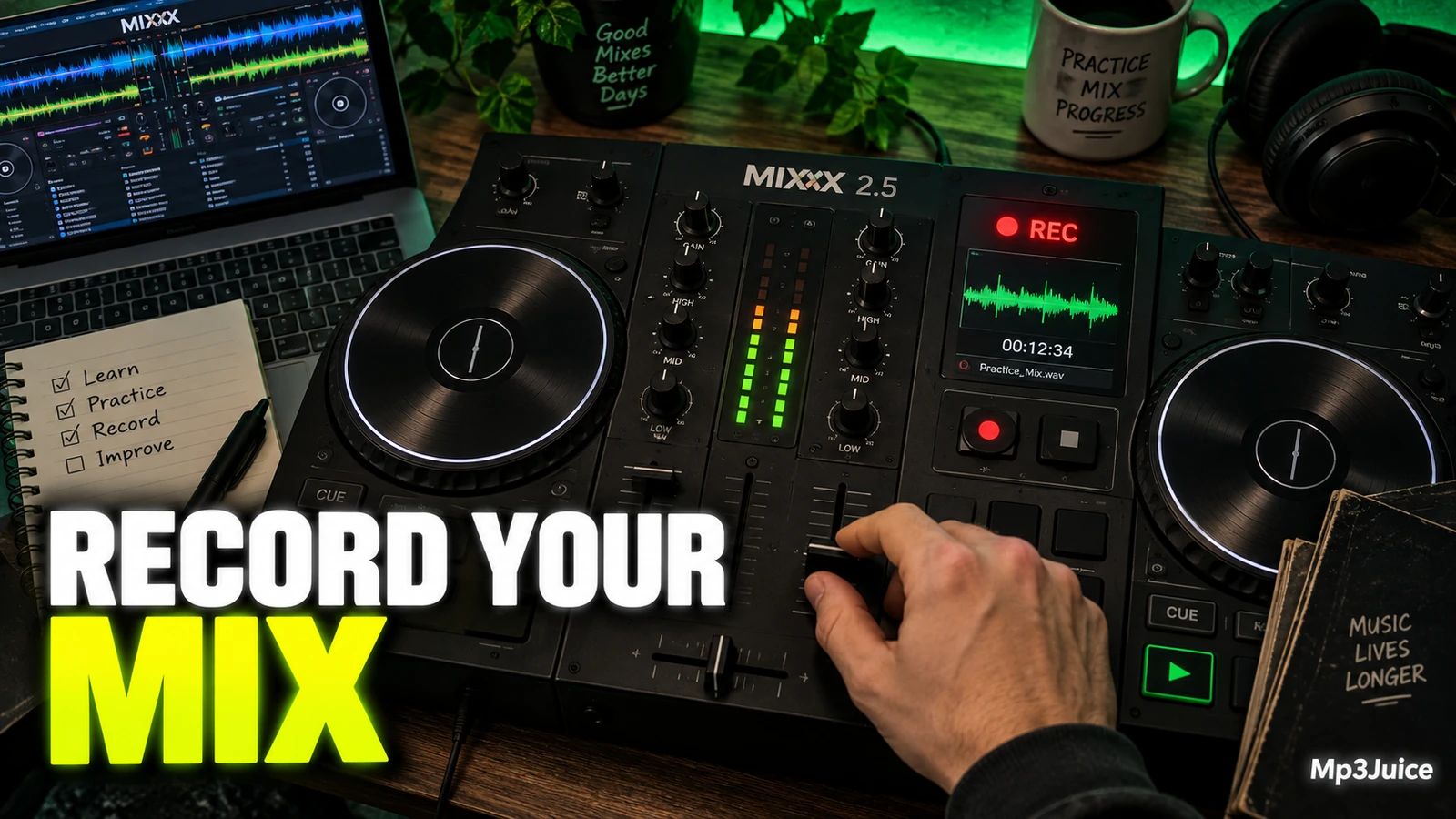
Mixxx documents several ways to start recording. You can click the recording icon at the top of the application window to start and stop a recording session. The running duration appears next to that icon. The recording widget might not be available in some skins, so it is useful to know the alternate route.
If the top recording icon is not available, click the Recordings icon in the library sidebar to switch to the Recordings view. From there, use Start Recording. You can also use Options > Record Mix from the menu at the top of the Mixxx application window. In the Recordings view, the display above the track table shows the recorded data amount and duration.
A simple take routine:
- Load only tracks you are allowed to use for the practice session.
- Check that your output and monitoring are behaving as expected.
- Start recording from the top recording icon, the Recordings view, or Options > Record Mix.
- Leave a brief lead-in if that helps you review the beginning cleanly.
- Perform the mix without restarting for every small mistake.
- Stop recording when the practice mix is finished.
- Open the Recordings view and locate the new file.
Try not to restart at the first imperfect blend. A complete pass often teaches more than a perfect opening. Mistakes late in the recording may reveal fatigue, weak track order, or transitions that are too complicated to repeat reliably.
Watch levels while performing
A recording captures your mix decisions. It does not prove that the output was clean, and a listening check cannot prove bit-perfect output. More importantly for practice, a recording cannot undo clipping or an overloaded stage. If the mix is too hot while you perform it, the saved file can preserve that problem.
During the take, listen for harshness when both tracks are loud, jumps after bass swaps, and crowded midrange when vocals or lead parts overlap. When you later hear a rough moment, identify the likely cause. Was the issue timing, EQ, track selection, or level? Each problem calls for a different next practice task.
If your main difficulty is tonal balance during blends, spend time with the EQ behavior you have selected in Mixxx 2.5. The related guide Choose Mixing Equalizers in Mixxx 2.5 can help you think about EQ choices as part of the mix.
Make short notes while recording if a moment feels risky. You do not need a diary. A few timestamps or track references are enough, such as “Track 2 into 3, bass late” or “breakdown blend felt too long.” During playback, compare your memory with the recording. Some mistakes feel large while performing but sound minor later. Other moves feel exciting in the moment but sound crowded on review.
Review the recording
After stopping, click the Recordings icon in the library sidebar to show the contents of the recordings directory. New recordings are saved there, along with CUE files if you chose to create them in preferences. Mixxx can also play a recording as a track by dragging it to a deck.
Review in passes:
- Overall flow. Listen without stopping. Mark where the energy drops, a transition lingers, or the set loses direction.
- Transitions. Focus on blend starts, phrase alignment, bass changes, and exits. Note whether each transition has a clear purpose.
- Sound balance. Listen for level jumps, harsh combined sections, and moments where important parts compete.
- Next task. Choose one or two fixes for the next take. A short action list is easier to apply than a long criticism list.
Example, fictional: Maya records a 28-minute permitted practice mix to work on smoother house transitions. She checks the recording destination, records one uninterrupted take, then drags the saved recording from the Recordings view onto a deck. On the first listen, she decides the overall track order works. On the second listen, she marks two transitions where she introduced the next track too early. Her next practice session focuses only on waiting an extra phrase before opening the incoming track.
This kind of narrow review is more productive than judging the whole set as “good” or “bad.” The recording becomes a map for the next rehearsal.
Organize practice takes
Once you record regularly, filenames and notes matter. You do not need a complex catalog. You need enough information to identify why each recording exists and what you learned from it.
Consider a lightweight naming pattern for your notes or destination folders:
2026-09-14_house_phrase-practice_take-01
2026-09-14_house_phrase-practice_take-02
2026-09-15_warmup-energy-test_take-01
If Mixxx creates a filename you did not choose, keep a separate note with the filename and your observations. Record the date, practice goal, track range, and two or three listening notes. Traceability matters more than a perfect naming system.
For longer practice sets, cue files may be useful if you enabled them in recording preferences, but do not let markers replace listening. A technically tidy change can still feel awkward if the mood shifts suddenly. A slightly imperfect blend may still serve the set if the energy lands well.
Keep a useful original practice recording until you have extracted the lesson from it. If you edit or convert files outside Mixxx, work on a copy first so the captured performance remains available for comparison.
Make the next take better
The best recording habit is a loop: record, listen, choose one improvement, record again. Do not turn review into endless self-criticism. The file should give you evidence for the next rehearsal.
Before your next take, choose one concrete target:
- Start each blend at a more intentional phrase point.
- Make bass changes cleaner and less abrupt.
- Reduce level jumps between outgoing and incoming tracks.
- Shorten transitions that linger without adding energy.
- Leave more space when two vocals or lead parts compete.
Then repeat the basic process: verify the recording settings and destination, start recording using one of the documented controls, perform the mix, stop recording, and review the saved file. For the next session, make a short test recording first, then capture one full uninterrupted practice mix and write down three transition notes while listening back.
If your practice set needs another track, look up its title and artist on Mp3Juice. Check your permission to use and record that music before adding it to the session.