Set Up Headphone Cueing in Mixxx 2.5
At a glance
Separate headphone cueing needs both the right Mixxx routing and hardware that can provide distinct output signals. A multi-channel interface, DJ splitter cable or suitable interface setup changes the available choices. Check the headphone and main outputs independently before mixing so a preview reaches the output you intended.
In this guide
To set up headphone cueing in Mixxx 2.5, match the software routing to hardware that can provide separate output paths. Open Preferences > Sound Hardware, choose the Output tab, and assign a public Main output and a private Headphones output. A normal laptop headphone jack is usually one stereo output, not two independent stereo cue outputs. Use a topology that actually separates the signals: a DJ splitter cable, two audio interfaces, a multi-channel audio interface, or a controller with a multi-channel audio interface.
What headphone cueing needs
Headphone cueing is not only a Mixxx setting. It is a routing problem. The main mix must leave one output path, while the preview signal must leave another output path. If the hardware exposes only one ordinary stereo output, Mixxx cannot turn that into two independent stereo feeds.
Before changing settings, list your real outputs. Write down the exact devices you can connect speakers and headphones to: built-in headphone jack, USB audio interface, DJ controller audio outputs, or another available audio device. Then decide which physical connector will carry the room sound and which one will carry the headphones.
Use these decision points:
- One built-in stereo output only: suitable for practice or audience playback without true separate stereo cueing.
- DJ splitter cable: separates one stereo output into two mono feeds, one for main and one for headphones.
- Two audio interfaces: one device can be assigned to the main output and another to headphones.
- Multi-channel audio interface: one device provides separate output channel pairs.
- Controller with audio interface: the controller provides separate main and headphone outputs if it includes a multi-channel audio interface.
Do not plan a set around assumptions such as “the laptop speakers and headphone jack must be separate” or “any Y cable will work.” Check what Mixxx shows in the Output tab and compare it with the connectors in your hand.
Limits of a single stereo output
With only one stereo output, you can still use Mixxx 2.5, but you cannot send independent stereo main and headphone signals at the same time. That limitation is hardware topology, not a missing preference.
For a practice or broadcast-style setup with one output, assign the built-in audio interface to Headphones, Channels 1-2. Although the output is labeled Headphones, speakers can also be connected to that physical output. In this arrangement, use the Pre/Main knob to switch what you hear between the main mix and the PFL signal. This is useful for learning transitions when you are not sending a separate main output to a live room.
For simple playback to an audience without headphone cueing, assign the built-in audio interface to Main, Channels 1-2. That sends the main mix to the connected output, but it does not provide a private headphone preview. You will need to mix without the usual cueing workflow or change to a different hardware setup.
When checking a laptop, record what actually happens when headphones are connected. Do the built-in speakers mute? Does Mixxx show only one channel pair? Are speakers and headphones shown as one device or separate devices? These observations matter more than the number of physical sound holes on the computer.
Use a DJ splitter cable for mono cueing
A DJ splitter cable is the lowest-cost documented way to cue with headphones from one computer output. It must be a stereo-to-mono DJ splitter, not a normal headphone sharing splitter. A normal sharing splitter usually sends the same stereo signal to two sockets, which does not create separate main and headphone feeds.
With a DJ splitter, the computer’s stereo output is divided into two mono signals. Mixxx assigns the main output to one channel and the headphone output to the other. The tradeoff is clear: you lose stereo imaging for both listeners, but you gain separate mono monitoring.
- Connect the DJ splitter cable to the computer headphone output.
- Connect headphones to the side marked for headphones and speakers to the side marked for speakers, if the cable is labeled.
- Open Preferences
>Sound Hardware. - Select the Output tab.
- Set Main to the built-in audio interface, then choose Channel 1.
- Set Headphones to the built-in audio interface, then choose Channel 2.
- Click Apply.
If both outputs carry the same complete stereo program, the cable is probably the wrong type. If one side of the headphones or speakers is silent when using a generic adapter, that also points to an adapter mismatch. Note which channel reaches which connector before changing several settings at once.
Route with USB audio interfaces
An external audio interface can give a clearer separation than a splitter cable. Mixxx 2.5 documents two relevant patterns: two audio interfaces, or one external multi-channel audio interface.
For two audio interfaces, assign Main to the external audio interface on Channels 1-2. Assign Headphones to the built-in audio interface on Channels 1-2. Click Apply. This pattern is useful when the external interface feeds speakers and the laptop output feeds headphones.
For one multi-channel external interface, assign Main to the external audio interface on Channels 1-2. Assign Headphones to the same external audio interface on Channels 3-4. Click Apply. This only works if the interface exposes that additional output pair to Mixxx.
Before relying on either pattern, write down the device names and channel choices shown in the Output tab. If you expected Channels 3-4 but only see Channels 1-2, stop and verify the hardware connection and operating system recognition. Do not label a device “multi-channel” in your notes unless Mixxx actually offers the needed channel pair.
| Question | What to write down |
|---|---|
| Main output | Device name, channel selection, and speaker connector used |
| Headphone output | Device name, channel selection, and headphone connector used |
| Splitter use | Whether it is a DJ splitter and which side feeds speakers |
| Unexpected behavior | Silence, duplicated sound, reversed outputs, or one-sided audio |
Check whether the controller includes audio
A DJ controller and an audio interface are different parts of a setup, even when they are built into the same box. A controller can operate Mixxx controls without providing any audio outputs. For cueing, the important question is whether it has an integrated multi-channel audio interface.
For a controller with an integrated multi-channel audio interface, open Preferences > Sound Hardware, then the Output tab. Set Main to the controller’s audio interface, Channels 1-2. Set Headphones to the controller’s audio interface, Channels 3-4. Click Apply.
For a controller without an integrated audio interface, use another audio setup. One documented pattern is Main to an external audio interface on Channels 1-2 and Headphones to the built-in audio interface on Channels 1-2. Click Apply and test quietly before connecting to a louder system.
If you are still choosing hardware, separate the control question from the audio question. Ask, “How will I control Mixxx?” and “Which connectors will carry main and headphone audio?” A controller answers both only when it includes the required audio interface. For a broader setup walkthrough, see Connect a DJ Controller to Mixxx 2.5.
Verify routing before playing
After applying settings, run a quiet routing check. This check does not prove bit-perfect output, audio quality, or long-term reliability. It only confirms that the intended signal appears at the intended connector under your current setup.
- Lower speaker and headphone volume before starting.
- Load a familiar track and start playback.
- Confirm that the main mix comes from the device assigned to Main.
- Use Mixxx’s headphone cueing workflow to listen for the preview signal in the device assigned to Headphones.
- If using a splitter, confirm that the main and headphone sides are not reversed.
- If using a multi-channel interface, confirm that headphones are not assigned to the same channel pair as the main output.
- Change one cable or one Output setting at a time, then test again.
Example: Maya has a laptop, a compact USB audio interface, and a controller with no audio outputs. She assigns Main to the USB interface on Channels 1-2 and connects that interface to powered speakers. She assigns Headphones to the built-in audio interface on Channels 1-2. During her quiet test, she records the device names and confirms which connector feeds each destination.
If something is wrong, work from hardware back to Mixxx. Are the headphones plugged into the device assigned to Headphones? Are speakers plugged into the device assigned to Main? Is the splitter a DJ splitter rather than a sharing splitter? Does the interface show the channel pair you selected? These notes make the next fix specific instead of random.
If your next step is recording a clean practice session after cueing is sorted, read Record a Practice Mix in Mixxx 2.5. For now, choose the routing pattern that matches your actual hardware, click Apply, and run one quiet cue test before playing through speakers.
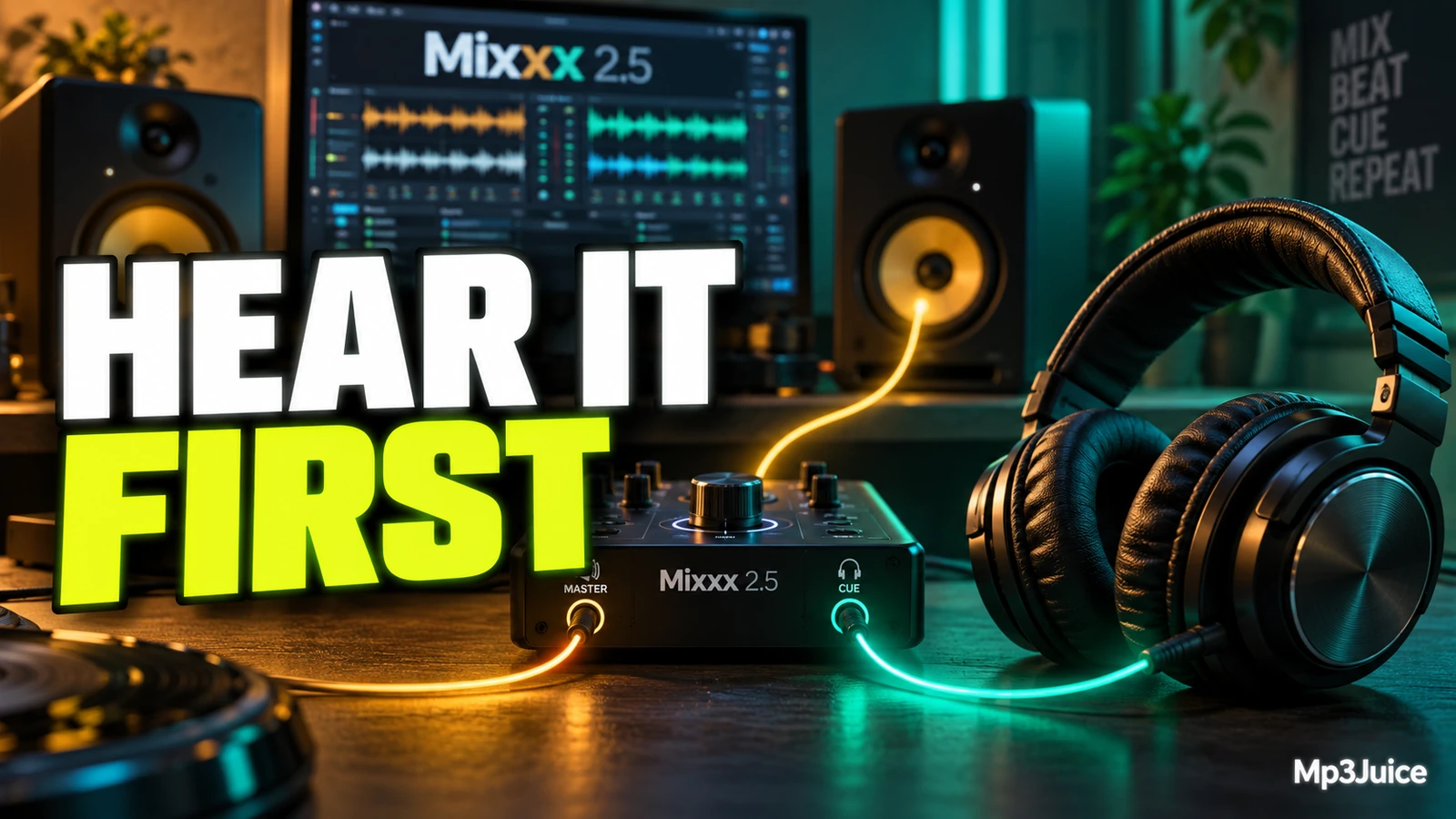
Choose familiar recordings for your first cueing test. You can look up a song and its artist on Mp3Juice, then use your permitted local copy to compare the headphone and master outputs.