Add Your Music Files to Mixxx 2.5
At a glance
Choose a stable folder for your music, let Mixxx 2.5 scan it, then check that the expected tracks appear and play. Mixxx creates library entries that point to your existing files. Keep those files in place and analyze a small selection before preparing a larger DJ library.
In this guide
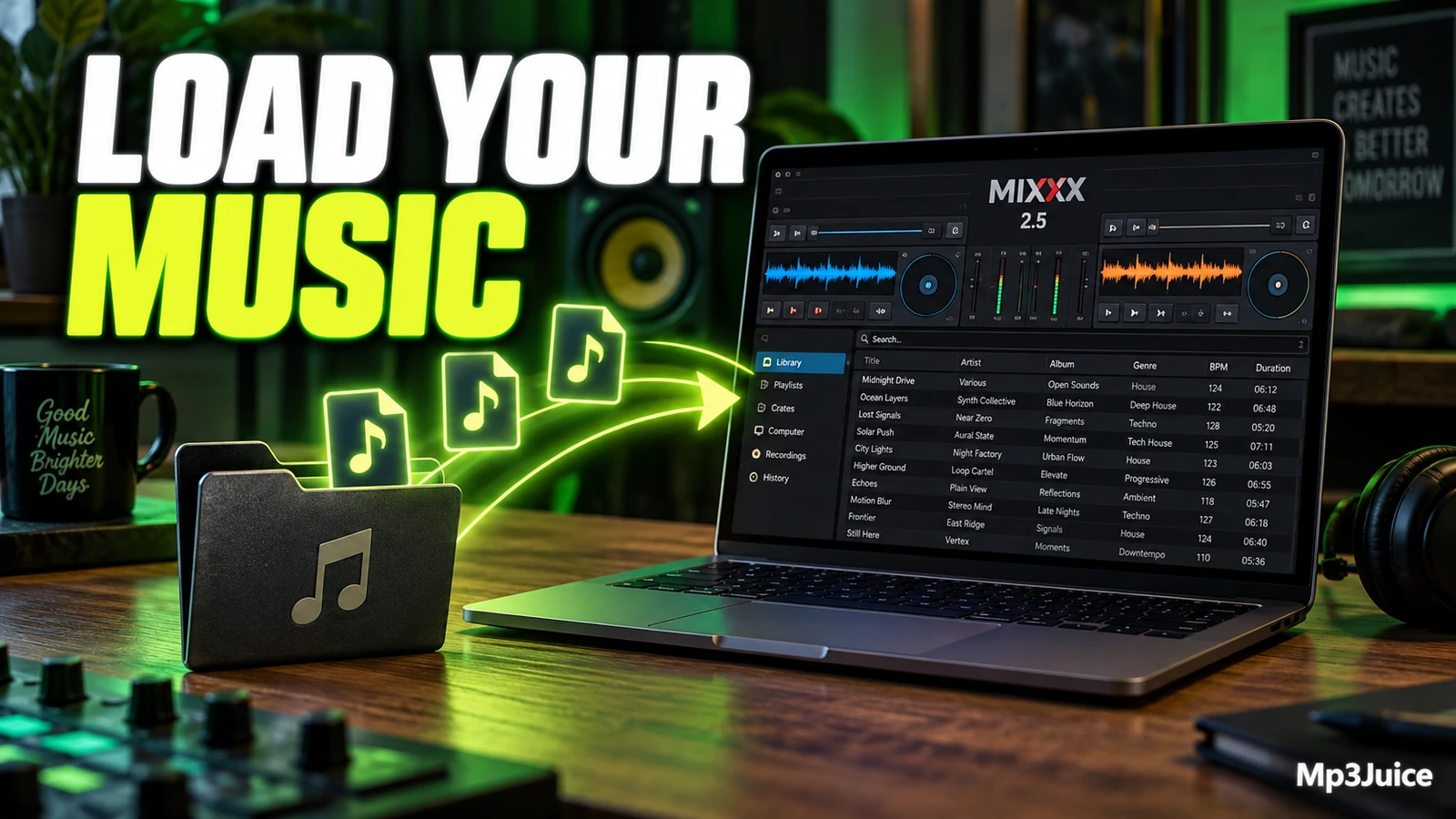
To add music files to Mixxx 2.5, open Mixxx, choose the local folder where your audio files are stored when prompted, click Select Folder, then let Mixxx scan and list supported tracks in its library. This does not download music or create a second music collection. Mixxx adds library entries that point to audio files already on your computer, so the original file locations still matter.
What Mixxx adds
Before importing anything, separate two ideas: the audio file and the library entry. The audio file is the actual track stored somewhere on your computer, such as in a Music folder, an external drive, or a DJ preparation folder. The library entry is Mixxx’s record of that track, used to display it in the library and associate Mixxx information with it.
This distinction prevents a common first-session mistake. If a track appears in Mixxx, that does not mean the original file has been duplicated into a new Mixxx-owned folder. If you move, rename, or disconnect the place where the file lives, the entry may no longer be useful until you update and verify the library.
For a first session, choose a folder structure that is easy to understand. You do not need a perfect archive, but you do want folders you will not immediately rename. A practical starting point is one top-level folder for DJ music, with subfolders such as House, Hip-Hop, Practice Set, or New Tracks To Review. Choosing a sensible parent folder reduces the chance of scanning scattered or unrelated audio.
Before first scan
Spend a few minutes preparing before opening Mixxx 2.5 for the first time. This is not about retagging your whole collection or deleting files. It is about making the first scan predictable and easy to check.
- Find the real folder. Identify the normal folder that contains your audio files, not a shortcut or vague library view.
- Make the files available. If the music is on an external drive, connect that drive before starting Mixxx.
- Start small if unsure. If your collection is messy, make a small practice folder with a few albums or DJ tracks and scan that first. This lets you observe how Mixxx displays your music before using a larger archive.
- Avoid immediate reorganization. Do not import a folder, analyze tracks, then rename the folder minutes later. Decide on a stable location first.
On Windows 7 and Windows 8, avoid choosing the Windows “Music” Library virtual folder in the import dialog. Choose a regular folder instead, such as a normal music folder that corresponds to an actual folder location.
Import local folder
When Mixxx 2.5 starts for the first time, it asks where your music is stored. The dialog may point to a common music location, but you can choose another folder on your computer. Select the folder that contains the tracks you want available, then click Select Folder. Mixxx scans that location and lists supported music files in the Tracks view.
Scan time depends on how much music is in the selected location. During a first setup, let the scan finish unless you realize you selected the wrong folder. If you accidentally chose a very broad location, such as an entire user folder, it may be clearer to restart with a more specific music folder rather than building a first library full of unrelated audio.
A useful first-scan workflow is:
- Open Mixxx 2.5. Launch the application normally for your operating system.
- Choose your music folder. Pick the folder that actually contains the audio files you want Mixxx to know about.
- Click Select Folder. Let Mixxx scan the selected folder.
- Review the Tracks view. Look for expected artists, titles, and filenames. The goal is not perfect metadata yet, just confirmation that the right folder was scanned.
- Load one known track. Choose a track you recognize and confirm that it loads, which verifies that the library entry points to an accessible file.
If you later add or move files, use Library ‣ Rescan Library. If you want Mixxx to rescan whenever it starts, use Preferences ‣ Library ‣ Rescan on startup. Rescanning updates the library. It is not a download step and it is not a command to duplicate your audio files.
Analyze for session
Importing and analyzing are related, but they are not the same task. Importing makes tracks appear in the Mixxx library. Analysis prepares information used while working with tracks. Mixxx can analyze tracks when they are first loaded in a deck, but you can also analyze in advance so information such as BPM, key, beatgrid, waveform overview, ReplayGain detection, and file-problem detection is prepared before a session.
To analyze music after import, go to the Analyze view in the left side panel of the library. You can analyze selected tracks, newly added tracks, or the full library. The documented controls include the Analyze button and the New and All toggles in the analysis pane. While analysis runs, Mixxx shows progress as a percentage and the total queue length.
For a first practice session, avoid making analysis an all-or-nothing job. If your library is large, start with the music you are most likely to use. This gives you useful preparation sooner and makes the results easier to inspect.
- Open the Analyze view. Use the left library panel.
- Choose a focused set. Select a handful of tracks, or use New if you just imported a small folder.
- Click Analyze. Wait for the queue to finish before judging the library columns.
- Check several results. Look at BPM, duration, key, and waveform overviews on tracks you know well.
- Prioritize your session. If something looks odd, set that track aside for review rather than stopping all preparation.
Beatgrids deserve special attention. If a beatgrid is wrong, sync-based mixing can feel confusing because the visual and timing references do not line up with the music. You do not have to solve every beatgrid before your first session, but you should preview important tracks and note any that need closer review.
Example first library
Example: Maya is preparing her first Mixxx 2.5 practice hour on a laptop. Her music is scattered across Downloads, an old desktop folder, and a USB drive. Instead of scanning everything, she creates a folder called DJ Practice September inside her normal Music folder and puts 40 tracks there for practice. She opens Mixxx, selects that folder at the first import prompt, and waits for the scan to finish.
In the Tracks view, Maya recognizes most of the titles, but a few display with filenames instead of clean track names. She does not stop to retag her whole collection. She loads one familiar song to confirm it is accessible, then goes to the Analyze view. She uses the newly added track option and clicks Analyze. When analysis completes, she checks BPM and waveform overviews for five tracks she knows well.
This example matters because Maya treats Mixxx’s library as a working index, not as a cleanup tool or a duplicate collection. Her actual audio files remain in a folder she controls. Her library entries help her browse, analyze, and load those files in Mixxx. Later, when she is ready for a more intentional playlist-like working area, she can move from basic importing to crates. For that next step, see Prepare a Music Crate in Mixxx 2.5.
Verify after import
After the scan and first analysis, spend a few minutes verifying instead of assuming the library is ready. This is a read-only investigation step. You are looking, loading, and making notes, not mass-editing files.
- Confirm expected coverage. If you selected a folder with 20 practice tracks, the library should broadly reflect that choice. If it contains unrelated sound effects or podcasts, you may have selected too broad a folder.
- Load a few known tracks. A library entry is only useful if Mixxx can access the underlying audio file.
- Check empty or suspicious columns. Before analysis, BPM, duration, and key may be empty or based on file tags that might be wrong. After analysis, review important tracks rather than blindly trusting every value.
- Look for duplicate-looking entries carefully. Similar titles may be different edits, remasters, or files stored in multiple folders. Do not remove anything until you know which file each entry represents.
- Record what needs attention. Note missing files, odd BPM values, questionable beatgrids, confusing names, and tracks that should be excluded from the first practice set.
If the library does not look right, the cleanest first-session fix is often to create a smaller, clearer folder and scan that, rather than trying to solve years of music organization inside one setup session. Once your tracks are imported and analyzed, your next practical setup task may be monitoring. If you plan to cue tracks before the audience hears them, read Set Up Headphone Cueing in Mixxx 2.5.
First session checklist
Use this checklist before you begin mixing in Mixxx 2.5:
- Your selected folder is stable. You know where the actual audio files are stored.
- The Tracks view contains the right material. You see the music you intended to import, not a random sweep of your computer.
- A few tracks load successfully. This confirms the library entries point to accessible files.
- Important tracks are analyzed. You have prepared analysis for the music you expect to play.
- You inspected key results. You checked several tracks you know well, especially if you plan to use sync or tempo matching.
- You know how to update later. Use Library ‣ Rescan Library after adding or moving files, or enable Preferences ‣ Library ‣ Rescan on startup if that suits your workflow.
For your next action, open Mixxx 2.5 with a small, stable practice folder, scan it, analyze only those new tracks, then load three familiar songs to confirm the library entries are useful for a real practice session.
Looking for another recording to add to your practice folder? Search by song and artist on Mp3Juice, then import the audio files you have permission to use into Mixxx.