Prepare a Music Crate in Mixxx 2.5
At a glance
In Mixxx 2.5, preparing a music crate involves creating a focused, unordered collection of 10 to 20 tracks selected by purpose, such as energy level or genre. Crates aid skill-based practice by limiting choices without prescribing track order, unlike playlists. Effective crates are manageable, use existing metadata, and remain flexible through ongoing refinement during practice.
In this guide
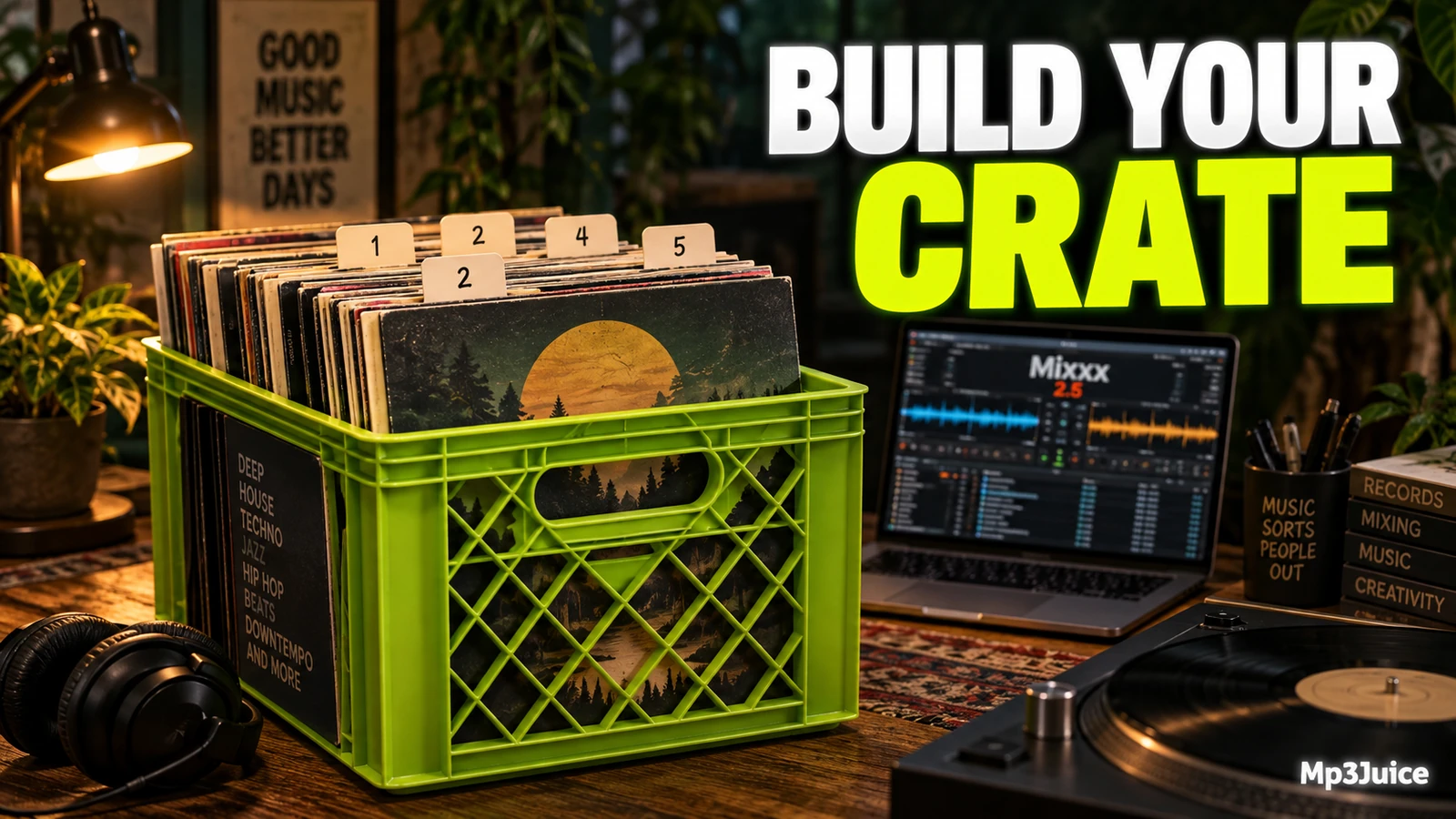
To prepare a music crate in Mixxx 2.5, create a small collection from tracks already in your library, then use it as a flexible practice pool. A crate is useful when you want options to choose from while mixing. A playlist is the better tool when the order itself matters.
Crate or playlist
Start by deciding what you are preparing. A crate is for grouping tracks that belong together without setting a running order. That makes it well suited to mood, genre, event, energy, or skill-based practice. It is not the right place to plan the first, second, and third track of a fixed routine.
In Mixxx 2.5, crates are unordered collections. Create one from the Crates sidebar item, add tracks by dragging selections onto the crate name or by using the library track list context menu, and check the track count and duration beside the crate name. Crates do not allow duplicate entries or manual ordering like playlists.
That difference matters during practice. If you are training track selection, testing blends, or narrowing a large library to a manageable group, use a crate. If you already know the sequence and want to rehearse exact transitions, use a playlist instead.
For practice preparation beyond the selection itself, see Set Up Headphone Cueing in Mixxx 2.5. A crate helps you limit your options. Cueing helps you judge the next track before committing to it in the mix.
Choose a practice purpose
A good crate begins with a clear reason to exist. Avoid building a large catch-all crate called good songs if your aim is to improve a specific skill. Smaller crates reduce browsing and make practice decisions more deliberate.
Useful practice crate ideas include:
- Warm-up house, 30 minutes: restrained tracks for the beginning of a session.
- Energy lift practice: tracks that help you move from relaxed to more intense selections.
- Vocal control: songs where you want to avoid awkward vocal clashes.
- New library review: recent additions you do not yet know well.
- Same-style blends: tracks with similar genre tags or a similar overall feel.
Use metadata already present in your Mixxx library, such as artist, title, genre, rating, or other visible columns you normally trust. Do not make crate preparation dependent on a new tagging project. The aim is to create a practical working box from information you already have.
Create the crate
In the library area, create a new crate from the Crates sidebar item. The documented method is to right-click Crates, choose Create New Crate, enter a name, and confirm with OK.
Choose a name that states both the content and the purpose. A name like Practice - deep warmup - Sep is more useful than Crate 1. If you prepare for different settings, include the setting. If you prepare for a skill, include the skill.
Practice - garage vocalsPractice - 125 warmup houseEvent prep - rooftop mellowReview - new downloads
After the crate is created, use the displayed track count and total duration as a reality check. If a short practice crate already contains several hours of music, narrow it before mixing. The crate should make choices easier, not become a second full library.
Add tracks without duplicating audio
Adding tracks to a normal Mixxx crate is an organization step inside the library. It is not the same as creating another audio file. Keep your original files where they are unless you intentionally use a separate file-copying command for a specific transfer or backup task.
A simple workflow for a short practice selection:
- Browse or filter your library: use metadata columns you already rely on.
- Choose a workable pool: for a short practice, 10 to 20 tracks is often easier than a huge folder.
- Check the fit: add tracks because they serve the crate purpose, not because you vaguely remember liking them.
- Add the selection: drag selected tracks from the library or a playlist onto the crate name, or use the library track list context menu.
- Review count and duration: decide whether the crate is still focused enough.
If this is your first time organizing important material, make a tiny test crate first. Add three or four tracks, confirm that they appear in the crate, and verify that the same tracks remain available in the library. Record what you changed so you can understand your own workflow later.
Use metadata as a filter
Metadata can speed up selection, but it should not replace listening. Track names, artists, genres, ratings, and other visible fields are starting points. Use them to find candidates, then judge whether each track belongs in the crate.
For each candidate, ask:
- Does it fit the purpose? A strong peak-time track may be wrong for a warm-up crate.
- Can it sit beside other tracks here? If it feels isolated, it may need a different crate.
- Do I know its main moments? If you do not know where the vocal, breakdown, or energy shift occurs, treat it as a learning track.
Because crates are unordered, do not try to turn the crate itself into a perfect set list. Instead, create a pool that gives you useful choices during practice.
Example: Maya, a fictional beginner DJ, wants a mellow 40-minute house practice session for a small dinner party. She creates Practice - dinner house mellow, browses for tracks she recognizes as deep or restrained house, avoids obvious peak-time songs, and adds 16 tracks. The duration beside the crate name tells her she has enough music without building an all-night collection. During practice, she chooses the next track by listening rather than following a fixed order.
Keep the crate flexible
Use the crate as a working area. If a track repeatedly feels wrong for the purpose, remove it from the crate. Removing a track from an unlocked crate does not remove it from the Mixxx library. It only removes it from that collection.
If a crate is useful but you want to try a variation, Mixxx 2.5 provides a duplicate crate option from an existing crate’s context menu. For example, duplicate Practice - garage vocals, rename the copy for a faster version, then adjust the contents.
Watch for locked crates. A locked crate cannot be changed in the usual ways: you cannot add tracks, rename it, or delete it. If a crate will not accept edits, check whether it is locked and use the documented unlock option from the crate context menu only if you intend to edit it.
Mixxx also includes crate commands for analysis, importing, exporting, and copying track files. Use those only when they match your actual task. For ordinary practice preparation, create the crate, add tracks, review the contents, and refine the selection.
Practice from the crate
When the crate is ready, treat it like a small DJ case. Load a suitable first track, then choose the next track based on sound, energy, and what you hear while preparing the mix. The point is to practice decisions, not to obey a script.
- Start with a suitable opener: choose a track that represents the crate’s purpose.
- Audition two possible next tracks: compare them by feel as well as metadata.
- Commit and mix: make a choice so you practice timing and judgment.
- Note what did not fit: record tracks that felt too intense, too flat, or stylistically misplaced.
- Adjust lightly: remove clear mismatches or add a few better candidates.
If you want to capture the result of a practice run, see Record a Practice Mix in Mixxx 2.5. A recording can help you judge whether the crate supports the set you intended, while the crate itself remains a flexible pool.
When you discover an exact order that works, make a playlist for that sequence. Keep crates for discovery and selection. Use playlists when the running order becomes part of the plan.
Next small step
Open Mixxx 2.5, create one crate with a specific practice purpose, add no more than 20 tracks from existing library metadata, and do one short cue-based practice session before making larger library changes.
For ideas to fill a gap in your next crate, search for a specific song or artist on Mp3Juice. Audition any permitted additions before deciding where they belong in your set.