Find Which Playlists Contain a Song on Mac
At a glance
On Mac, use Apple Music’s 'Show in Playlist' command from the Songs view to find which playlists contain a selected song. This reveals playlist membership within the current library and helps you review song placements without assuming multiple audio files. Careful review includes checking playlist contexts and collaborative statuses before editing.
In this guide
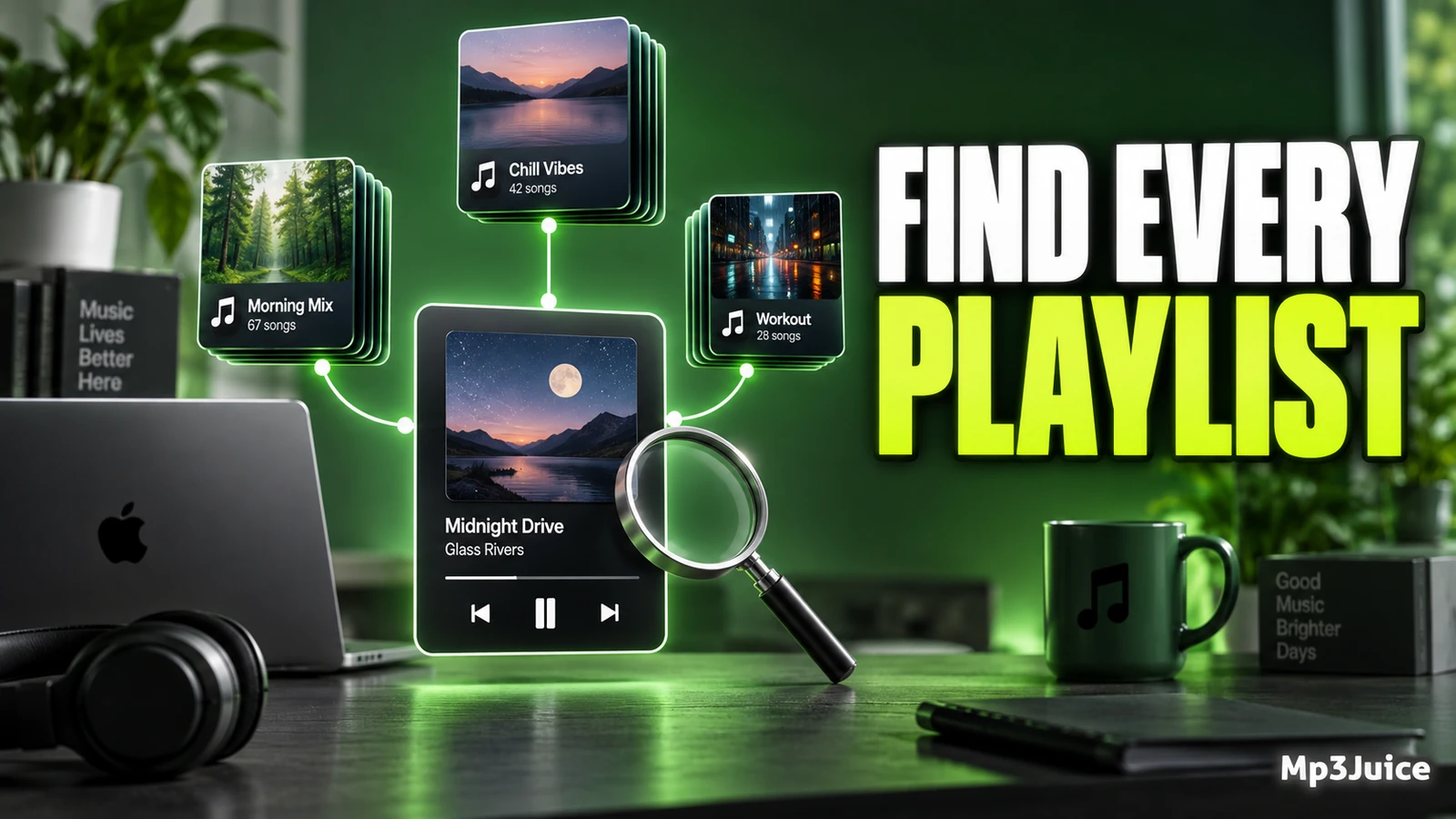
To find which playlists contain a song on Mac, use Apple Music’s contextual command from the song list. In Music, click Songs in the sidebar, Control-click the song, then choose Show in Playlist. The submenu identifies playlist membership for that selected library item, and you can choose a listed playlist to open it.
What this check shows
The Show in Playlist command is a membership check. It answers a practical question: “Which playlists include this selected song?” That is different from searching for a title across your library, scanning playlists manually, or trying to decide whether you have duplicate audio files.
Apple documents the check from the Songs view in the Music app on Mac: Control-click a song, choose Show in Playlist, then review the submenu. The submenu can show playlists and a library category that include the song. A collaborative playlist is identified with the collaboration icon next to its name.
Keep the result narrow. It tells you what Music reports for the selected item in the library you are viewing on that Mac. It should not be treated as proof of what exists in every shared, remote, or separately maintained playlist context.
It is also important to separate playlist membership from file storage. A song appearing in several playlists does not, by itself, mean there are several audio files. Playlist membership is an organization detail. If you are investigating storage use or duplicate recordings, use this result as one note in your review, not as proof.
Use Show in Playlist
Use this check when you already know the song you want to investigate. It is useful after a library has grown over time, after imported tracks have been added to themed playlists, or when a song keeps appearing in a listening routine and you want to understand why.
- Open Music on your Mac. Work in the Music app rather than Finder, because the command concerns Music library organization.
- Click Songs in the sidebar. This is the documented starting point for the command.
- Find the song. Select the exact item you want to check. Be careful with live versions, remasters, clean versions, single edits, or imported copies with similar names.
- Control-click the song. Use the contextual menu for that selected item.
- Choose Show in Playlist. Review the submenu that appears.
- Open a listed playlist if needed. Choose a playlist from the submenu to inspect the song in that playlist’s context.
If you do not see a playlist you expected, pause before editing. You may have selected a different item with the same title, or you may be thinking of another library or playlist context. If you regularly use more than one Music library, see Switch Between Music Libraries on Mac.
Read the submenu carefully
The submenu is small, but it can still guide a careful review. Each listed playlist is a place where the selected song appears. If a library category is shown, treat it as another placement signal for the selected item. If a playlist has the collaboration icon, remember that the playlist may be part of a shared workflow.
When you open a playlist from the submenu, look at the surrounding songs and the playlist’s apparent purpose. A track in a “Road Trip” playlist may serve a different role from the same track in a “Practice” playlist. The membership list tells you where the selected song appears; the playlist context helps you decide whether that placement still makes sense.
For a careful review, note these points:
- Playlist names can be vague. A name such as “Favorites” may not explain whether the list is for mood, recent listening, an event, or a routine.
- Similar songs can mislead you. Compare visible details in your library before changing anything, especially when several versions share the same title.
- Collaborative playlists need extra care. A song may have been added as part of a group plan rather than your own filing system.
- Membership is not storage evidence. Do not assume several playlist appearances mean several audio files.
A useful habit is to write down the listed playlists before making changes. That note gives you a simple reference if you later decide the song belonged in a playlist after all.
Example review
Example: Maya has a track called “Harbor Lights” in her Music library. She notices it playing during focused work and wants to know why. In the Music app on her Mac, she clicks Songs, finds “Harbor Lights,” Control-clicks it, and chooses Show in Playlist. The submenu lists “Late Night Coding,” “Calm Commute,” and a collaborative playlist called “Weekend Set.”
Instead of immediately treating all three memberships as a problem, Maya opens each playlist. In “Late Night Coding,” the surrounding songs are quiet and steady, so the placement still fits. In “Calm Commute,” the song feels too intense compared with the rest of the list, so she marks it for possible removal from that playlist. In “Weekend Set,” she notices the collaboration indicator and decides to ask the group before changing the shared list.
This review is more useful than treating playlist membership as a cleanup checklist. The same song can serve different purposes in different lists. The question is not only “Where is it?” but also “Does it still fit here?”
Avoid common mistakes
The most common mistake is confusing playlist organization with duplicate-file cleanup. Show in Playlist helps you inspect where a selected song appears in playlists. It does not, by itself, prove that the song has been copied as multiple audio files.
Another mistake is assuming that a missing playlist in the submenu proves the song is absent from every place you listen. The result is tied to the selected item and the Music library context you are viewing. If you use more than one library, work with shared playlists, or have several similar versions of a track, verify those details before drawing a firm conclusion.
Be especially careful with lookalike tracks. A studio version, live recording, remastered album track, single edit, or imported file with slightly different information may be a separate library item. If you Control-click one version, you are checking playlist membership for that selected item, not for every recording with the same title.
If your goal is to reduce unwanted playback rather than reorganize playlists, record what you observe before changing playlist membership. Note where the song appears, when you hear it, and which playlist or listening flow you believe is involved. If the issue is that a song appears when you do not want it included in certain playback flows, see Exclude a Song from Playback in Music on Mac.
Plan small safe edits
Before making broad playlist changes, do a read-only pass. Use Show in Playlist on the song, open the listed playlists, and decide whether each placement still has a purpose. Often, this is enough to identify the real issue without changing anything immediately.
If you are reviewing many tracks, avoid starting with a large batch. Pick a small group of songs and inspect them one by one. Large playlist edits are harder to evaluate because you may not remember why each song was changed. A slower review creates a better record and reduces second-guessing.
Use a simple template while you work:
- Song checked: title and any visible details that help distinguish the version.
- Playlists shown: names from the Show in Playlist submenu.
- Context: what the surrounding songs suggest about each playlist’s purpose.
- Decision: keep, review later, or remove from that playlist.
- Reason: a short note, such as “too slow for workout list” or “keep for shared event.”
This approach helps when playlist names are emotional, temporary, or event-based. A song may look misplaced until you remember that the playlist was created for a wedding, a road trip, a language-learning routine, or a practice session.
When the result is confusing
If the submenu does not match your expectations, start with the simplest checks. Confirm that you are in Songs, confirm that you Control-clicked the exact song, and compare visible track details when duplicates or alternate versions may exist. If you maintain separate Music libraries, verify that you opened the library you meant to inspect.
If a playlist appears with a collaboration indicator, consider the social context before editing. A collaborative playlist may reflect another person’s contribution, a shared plan, or a temporary project. The membership check tells you the selected song is there, but it does not explain why it was added or whether others still want it included.
For a practical next action, choose one song that has been bothering you, use Show in Playlist, open each listed playlist, and write a one-line reason to keep or reconsider that song in each place before making edits.
For a song that is not yet in your library, search by title and artist on Mp3Juice. After importing a permitted file into Music, you can place it in the playlists where it fits.