Rate Your Songs in Music on Mac
At a glance
In Music on Mac, star ratings are organizational tools for ranking songs from one to five stars, enhancing sorting and playlist creation without affecting audio quality. Favorites mark quick preferences, while ratings support detailed library management. Establishing a clear rating scale improves music selection, playlist decisions, and library maintenance.
In this guide
In Music on Mac, star ratings are a personal organization tool. They help you rank songs for sorting, browsing, and playlist decisions, but they do not change playback quality or the sound of a recording. Favorite is a simpler preference signal, while a one-to-five star rating gives you more levels to work with. Use Favorite when a yes-or-no mark is enough, and use ratings when you want a more detailed library workflow.
What ratings do
A rating is a value you assign to music to indicate how much you like it. In Music on Mac, ratings can be used with songs, albums, and music videos. Their practical purpose is selection. A five-star song may be a personal essential, a three-star song may be acceptable in the right context, and a one-star song may be something you want to review before keeping in regular rotation.
Ratings do not remaster, normalize, repair, brighten, compress, or otherwise alter audio. They are library information used for organization. If a track sounds quiet, distorted, badly encoded, or different from another version, a star value will not fix that. Treat ratings as labels for your decisions, not as audio settings.
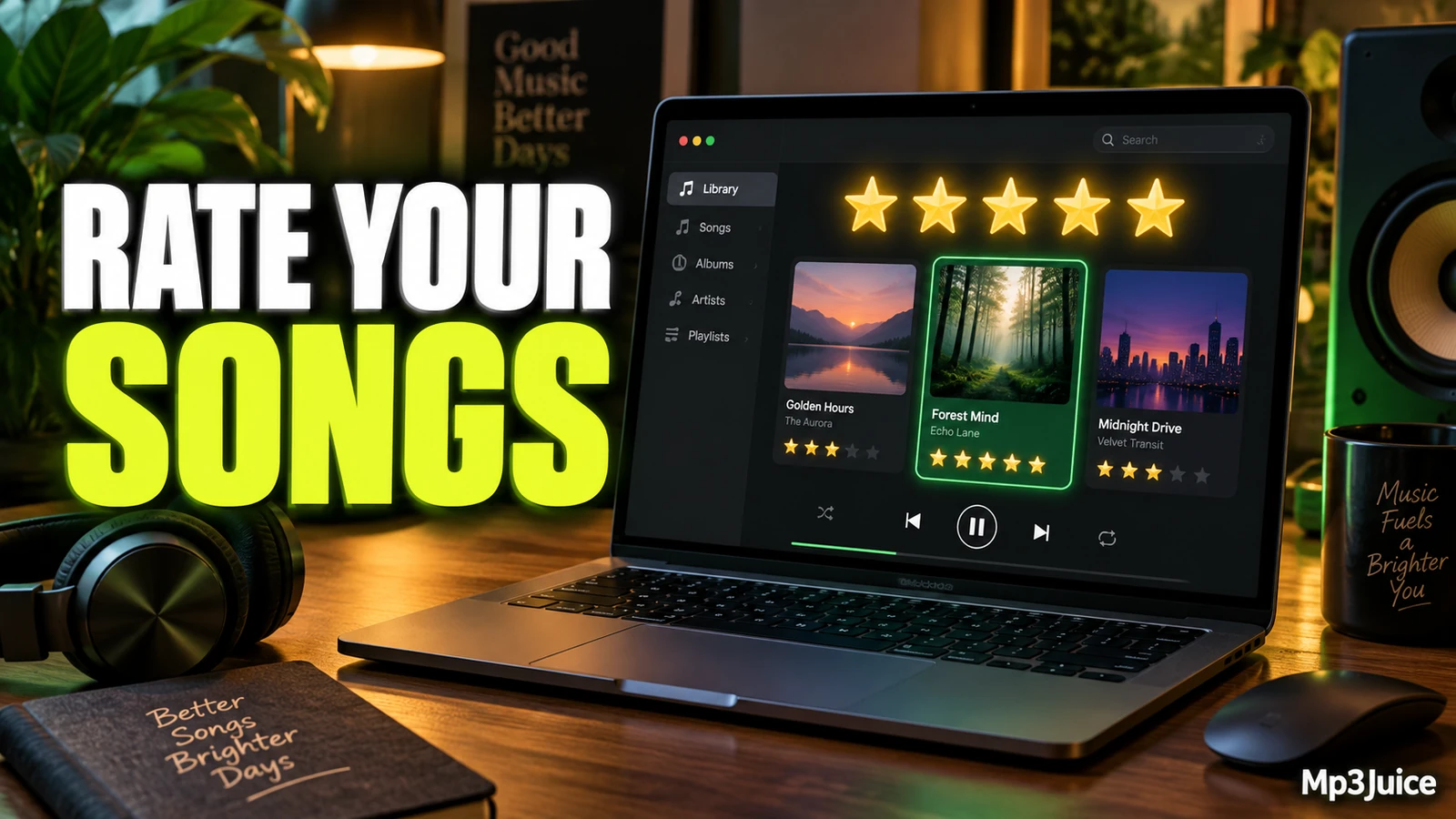
Apple documents that, in Songs view, you can show a Rating column with View > Show View Options, then click or drag in that column to add or remove stars. The same page says ratings can help create playlists or sort and browse the library, and that Album Rating can be shown, with an album rating calculated from individual song ratings.
Rating vs Favorite
Rating and Favorite can overlap, but they are not the same kind of decision. Favorite is useful when you want a quick mark for music that matters to you. A rating is better when you need ranking, review levels, or more precise selection. If you use both, decide what each mark means before editing a large library.
A simple system is to reserve Favorite for songs you especially want to recognize, and use stars for your own more detailed scale. For example, a song can be Favorite and still be four stars rather than five if you enjoy it but do not consider it essential. Another song can be five stars without being marked Favorite if you are using Favorite only for current heavy rotation.
| Tool | Best use | Decision style |
|---|---|---|
| Favorite | Mark music you especially like | Yes or no |
| Star rating | Rank songs for sorting, browsing, and playlist selection | One to five levels |
| Both together | Separate quick preference from detailed library management | Flexible, but needs rules |
Avoid using stars as a catch-all for technical defects unless that is an intentional part of your system. If a file has the wrong title, missing artwork, or a poor source, record that as a separate maintenance issue. Ratings work best when they capture your opinion of the music rather than every possible problem with the item.
Turn on ratings
In the current documented Music app on Mac, ratings are managed from the Songs view. Because the window layout can vary by macOS version, library view, and sidebar width, focus on the documented controls instead of expecting every column to be visible immediately.
- Open the Music app on your Mac.
- Click Songs in the sidebar.
- Choose View > Show View Options.
- Select Rating to show the Rating column.
- If you want album ratings visible, select Album Rating in the same view options.
After the Rating column is visible, move the pointer over a song in Songs view. Click in the Rating column to set a star value, or drag across the rating area to add or remove stars. If you are unsure how your clicks are affecting the value, test with one or two songs before editing many rows.
For a cautious workflow, work with a small group of tracks before applying a new rating scheme across your library. This is not because ratings are dangerous. It is because changing your mind after rating hundreds of songs can be tedious. A short trial helps you confirm whether your scale is useful.
Build a useful scale
The hardest part is not clicking stars. It is defining what the stars mean. A vague scale such as “more stars means better” may work for a small library, but it can break down when you are rating songs across moods, genres, and decades. Write a short rule set you can remember.
- Five stars: essential tracks you almost always want available for personal best-of lists.
- Four stars: strong songs you enjoy and would include in regular playlists.
- Three stars: acceptable songs, useful in context, but not priority picks.
- Two stars: songs you rarely choose, perhaps kept for album completeness or later review.
- One star: songs you want to identify for later decisions, not an automatic deletion instruction.
You can also leave songs unrated. Unrated does not have to mean bad. It can mean “not reviewed yet.” This is especially useful after importing music from CDs, folders, or another library. If you rate only songs you have recently heard, unrated tracks become a listening queue rather than a negative category.
Example: Maya, a fictional Mac user, imports several old compilation albums into Music. She marks long-term favorites with Favorite, then rates individual songs after listening during the week. Five stars mean “add to my personal classics list,” four stars mean “good for genre playlists,” three stars mean “keep with the album,” and unrated means “not heard recently.” She does not lower a rating just because a title needs correction. She records that as a separate cleanup task.
Use ratings for selection
Once ratings are consistent, they become useful for selection. In Songs view, showing the Rating column lets you scan the library visually and sort around your preferences. Ratings can also support playlist decisions because they provide structured values instead of relying only on memory.
Practical rating-based selections include:
- Review queue: identify unrated songs and listen through them in small batches.
- High-confidence listening: look for four- and five-star songs when you want reliable choices.
- Album cleanup: compare song ratings within an album to see which tracks stand out.
- Rotation refresh: note older favorites in your own system and decide whether they still fit your current playlists.
- Low-priority check: inspect one- and two-star songs before deciding whether they still belong in your library or playlists.
If your goal is playback control rather than preference ranking, use the right tool. A one-star rating may remind you to review a track, but it is not the same as preventing normal playback. For that separate workflow, see Exclude a Song from Playback in Music on Mac.
Ratings can also help when investigating playlist placement. If a song appears in many playlists despite a low rating, you may want to inspect where it is used before changing anything. For that related task, see Find Which Playlists Contain a Song on Mac.
Check before batch editing
Before rating a large library, do a read-only pass. Show the Rating column, look at several albums, and see whether stars are already present. Some libraries have older ratings from earlier organization habits. Others may show album ratings alongside individual song ratings. Understanding what is already there helps you avoid overwriting useful history.
If you plan to make many edits, start with a small version of the task rather than the whole library. Choose one album, one playlist, or twenty songs from a single genre. Apply your scale, sort the result, and ask whether the ratings would help you make decisions next month. If the answer is no, refine the scale before continuing.
Be careful with album ratings. Since album-level values can be calculated from song ratings, they may not mean the same thing as your opinion of the album as a complete listening experience. A record with two five-star singles and several unrated deep cuts can be misleading if you are judging albums rather than tracks. Keep those ideas separate if album listening matters to you.
This guide does not assume or guarantee how ratings appear across every device, account state, or cloud configuration. Treat the Mac Music library you are viewing as the place where you are verifying the change. If ratings matter to a larger setup, confirm visibility in the specific library and views you actually use before relying on them.
Keep the system maintainable
A rating system should reduce friction, not create homework. If you cannot decide between three and four stars within a few seconds, your definitions may be too narrow. Use broad categories, and revise only when a song clearly belongs elsewhere. The goal is better selection, not perfect judgment.
It helps to rate around normal listening. After playing an album, rate only the songs that produce a clear reaction. Leave the rest unrated until they stand out. For playlists, review the highest and lowest rated items first, because they create the clearest selection decisions. Middle ratings can remain flexible.
Record three things as you work: what each star level means, whether Favorite has a separate purpose, and which small group of songs you tested first. Then open Music on your Mac, show the Rating column in Songs view, and rate one small album or playlist before touching the rest of your library.
Ready to find another song alongside your rated favourites? Search for it on Mp3Juice, then add a permitted local copy to Music and rate it after listening.