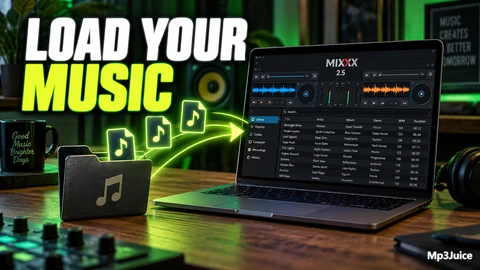
Move a Mixxx Library to Another Computer

At a glance
To move a Mixxx library to another computer, copy the Mixxx settings directory and all imported music folders. Install Mixxx on the new machine without launching it, place the settings directory correctly, copy music folders, then start Mixxx and relink directories via Preferences. Verify library integrity, playback, and configurations before reorganizing.
In this guide
To move a Mixxx library to another computer, copy two things: the Mixxx settings directory and the real music folders you imported into the library. The settings directory carries the Mixxx setup, including library information and configuration. The music folders carry the audio files themselves. Install Mixxx on the new computer, but do not open it yet. Put the copied settings directory in the correct location, copy the music folders, start Mixxx, then relink the music directories in Preferences ‣ Library.
What you are moving
A Mixxx migration is not just a database transfer. Mixxx can preserve the structure of your working setup, including your track library, settings, controller mappings and broadcast profiles. Your songs remain separate audio files in the folders where you stored them. If those files are not copied or reachable on the new computer, Mixxx may still show library information, but it cannot play audio that is missing.
Think of the move as two connected jobs. First, preserve Mixxx’s record of your collection. Second, preserve the collection itself. Those parts should stay coordinated, especially if you have built crates for events, adjusted cues, or kept music sorted across several folders.
The safest sequence is to prepare the old setup, make copies, install Mixxx on the new machine without launching it, place the settings directory, copy the music folders, open Mixxx, relink library folders, and test playback. Do not reorganize the music archive during the migration. A tidy folder plan can wait until after you know the copied setup works.
Prepare before copying
Before changing anything, make a backup copy of the Mixxx settings directory and every music folder that you imported into Mixxx. Keep that backup separate from the working copy you will use for the migration. If you have an external drive with enough space, create a dated folder such as mixxx-migration-2026-09 and place the settings copy and music folder copies inside it.
If you can still open Mixxx on the old computer, open Preferences ‣ Library and turn off Rescan on startup before making the migration copy. If the old installation cannot be opened but you recovered the settings folder, edit mixxx.cfg with a text editor and remove the line containing RescanOnStartup. Save the file after that change.
Do not use the migration as the moment to rename folders, flatten album directories, move tracks into new genre folders, or split a large music folder into smaller ones. Any of those changes can make it harder to tell whether a problem comes from the migration or from the new folder layout. First prove that the copied library works. Then make organization changes deliberately, in small batches, with backups.
If you are still building your Mixxx collection and want a refresher on ordinary importing, see Add Your Music Files to Mixxx 2.5. For this move, the goal is different: preserve an existing working setup rather than create a fresh library from scratch.
Make a small test copy
Before copying a huge archive, consider rehearsing with a small copy. This is useful when moving between operating systems, changing drive names, or using a new external drive. A test copy does not replace the full backup. It lets you observe the process without experimenting on the only copy of your working library.
Start by writing down the top-level music folders your Mixxx library uses. Do not delete tags, remove originals, or strip information from files just to migrate. You are checking the structure, not cleaning it. A simple note can be enough:
Settings backup: external drive, Mixxx settings copy
Music folder 1: Music/DJ Library
Music folder 2: ExternalDrive/Event Edits
Music folder 3: Downloads/Approved for Sets
Choose a small subset that represents the real library. Include tracks from each major source folder rather than copying only one album from one drive. If your library depends on an internal folder and an external SSD, include both in the rehearsal. The point is to reveal missing folders, incomplete copies, or confusing drive locations before the full move.
Example: Maya is moving a Mixxx setup from an older laptop to a new performance laptop. Her library uses two folders: one internal folder for purchased tracks and one external SSD folder for edits. Before copying all 600 GB, she makes a dated backup, then tests with a copied settings folder and a duplicate set of 40 tracks from both locations. When Mixxx opens on the new laptop, she checks whether crates appear and whether tracks from both copied folders can be relinked and played. Only then does she copy the full music folders.
Copy to the new computer
Prepare the new computer first. Install the current stable Mixxx version you intend to use, but do not launch it yet. A first launch can create a fresh settings directory. If you already opened Mixxx on the new computer, avoid casually merging old and new settings. Rename or remove the newly created settings directory before placing your migrated copy, so file conflicts do not blur what Mixxx is loading.
Next, copy your saved Mixxx settings directory to the correct settings location for the new system. The exact location depends on the operating system and user account, so verify the Mixxx settings directory location for your platform. Copy the directory with its contents, not only one file. A partial copy can leave out configuration files that help the migrated setup behave like the old one.
After the settings directory is in place, copy the music directories to the new computer or connect the external drive that contains them. Keep the folder structure as close as reasonably possible to the original. File paths are not always portable across machines. Different operating systems, usernames, drive labels, and mount locations can change how a path is written. That is why relinking is part of the migration.
Now start Mixxx. If the settings directory is in the expected location, Mixxx should open with your previous setup rather than as a blank first-time installation. If it asks for music folders, pause and check whether the settings directory was copied to the correct place and whether you are using the intended user account.
Relink and verify
Once Mixxx opens, go to Preferences ‣ Library and use Relink for each music directory. Relinking tells Mixxx where those music folders are on the new computer. This is different from immediately rescanning. When the settings and music directories have been moved properly and relinked, a library rescan is not required.
Work through the verification in a practical order:
- Check library visibility. Confirm that your main library, crates, playlists, and session history appear as expected.
- Relink every imported music directory. If you previously used multiple folders, handle each one, not just the largest folder.
- Load representative tracks. Choose tracks from different folders, drives, and crates.
- Confirm playback. Configure sound output on the new computer, then play several files long enough to confirm they are accessible.
- Inspect performance-critical crates. Open the crates or playlists you rely on most.
- Review cues and beatgrids on important tracks. Pay special attention if you also changed operating system, operating system version, or Mixxx version.
A listening check can show that files are reachable and playable, but it cannot prove bit-perfect output. Record what you tested: the tracks loaded, the folders represented, the crates checked, and any cue or beatgrid issues you noticed. If you are preparing crates after the move, Prepare a Music Crate in Mixxx 2.5 can help you review the collection from a performance angle.
Handle common migration problems
If the library appears empty, first check that Mixxx is reading the migrated settings directory rather than a new default one. This can happen if Mixxx was launched before the copy, if the settings directory was placed for the wrong user account, or if only part of the directory was copied. Do not immediately reimport everything into a new library unless you have decided that preserving the old setup is no longer important.
If tracks appear but do not load, focus on the audio files and paths. The Mixxx library can refer to tracks, but the actual files must be present and reachable. Check whether an external drive is connected, whether each music directory was copied completely, and whether the folder you relinked is the folder that contains the tracks.
If some folders work and others do not, revisit your original folder list. Many collections use more than one source folder: a main music folder, an edits folder, a downloads folder used for recent purchases, or a removable drive. Missing one smaller folder can break playlists or crates that otherwise look intact.
If you moved to another operating system, changed operating system version, or changed Mixxx version, review important cue points and beatgrids. Decoder changes may cause cue points or beatgrids to appear shifted. No automatic global fix is described for that situation. For affected tracks, correct them individually with the cue shift controls in the beatgrid editing controls section.
External libraries such as iTunes or Traktor integrations should be treated separately. A Mixxx settings migration can restore Mixxx’s own library and configuration, but those outside library sources may need to be configured again on the new computer.
Migration checklist
Use this checklist when you are ready to perform the full move:
- On the old setup, open Preferences ‣ Library and disable Rescan on startup, if Mixxx still opens.
- If Mixxx cannot open, edit
mixxx.cfgin the recovered settings copy and remove theRescanOnStartupline. - Make a backup of the full Mixxx settings directory.
- Make a backup of every music directory that was imported into Mixxx.
- Keep your music folder structure unchanged for the migration.
- Install Mixxx on the new computer, but do not launch it yet.
- Copy the migrated settings directory into the correct location for the new computer.
- If Mixxx was already opened on the new computer, rename or remove the new settings directory before placing the old one.
- Copy the real music folders, or connect the drive that contains them.
- Start Mixxx and confirm that your previous library and settings appear.
- Use Preferences ‣ Library and Relink for each moved music directory.
- Configure audio output, load representative tracks, and test crates, playlists, cues, beatgrids, and playback.
Keep the original backup untouched until you have used the new computer enough to trust the migrated setup. Write down the final settings directory location, every imported music folder, what you relinked, and any tracks that need cue or beatgrid review.
Missing a recording after the move? First check your backup and original folders. If you need to search for the song again, use its title and artist on Mp3Juice.