How to Use Less Mobile Data with Mp3Juice
At a glance
Save mobile data on Mp3Juice by searching precisely, checking titles before previews, choosing MP3 when you only need audio, avoiding repeated retries, and waiting for Wi-Fi on larger transfers. A fully saved local file can be replayed without re-streaming that file.
In this guide
To use less mobile data with Mp3Juice, make the first search as accurate as possible, check the result before playing it, choose audio when you do not need video, and wait for Wi-Fi for larger transfers. The homepage search does not require an account, and it accepts a song title, artist name, or an individual YouTube URL, so the most effective data-saving step is to avoid unnecessary previews, page loads, and repeated download attempts.
Start with a Specific Query
A vague search can produce more results to inspect, and every extra preview or mistaken transfer can use mobile data. Begin with the clearest query you have. A song title alone may be enough for a distinctive track, but adding the artist name often reduces confusion when many recordings share similar names. For example, a fictional search such as Crimson Sky Luma Vale is more precise than Crimson Sky.
If you already have the exact source you want, the homepage can also accept an individual YouTube URL. Manual paste works in the search field, and the Paste button may use browser clipboard access when permission is available. After you move to the results page, the search input is empty again, so copy or remember the exact query if you expect to refine it.
The form action is labeled Download, but entering a query is still the start of the search flow. It is not proof that a complete file has already been saved. Download completion happens through the browser and device file system after a transfer finishes.
Verify the Recording Before Previewing
On the results page, look at the visible recording titles before you press Play or open any format option. Play is a preview when it is available, and previews can use data even if you stop them quickly. If a title looks like a cover, remix, live clip, lyric video, or unrelated upload and that is not what you want, skip it rather than spending data to confirm a likely mismatch.
When several results look similar, use short checks instead of playing every option from beginning to end. Compare title wording, artist spelling, and any version labels. A careful ten-second confirmation of the most likely result is usually more data-conscious than sampling five uncertain results. If none of the visible results seems close, revise the query with the artist name, a featured artist, or a distinctive title phrase before previewing more.
The goal is not to avoid all previews. A brief preview can prevent a larger mistaken download. The data-saving habit is to preview only after the result already appears plausible.
Choose Audio When You Do Not Need Video
Each result has a Download control that opens MP3 and MP4 options. If your purpose is listening, choose the MP3 option rather than requesting video. The Download MP3 option opens a third-party converter embedded below the selected recording, and availability can vary. The presence of an option is not the same as a finished download, so wait until the browser completes the transfer before counting the file as saved.
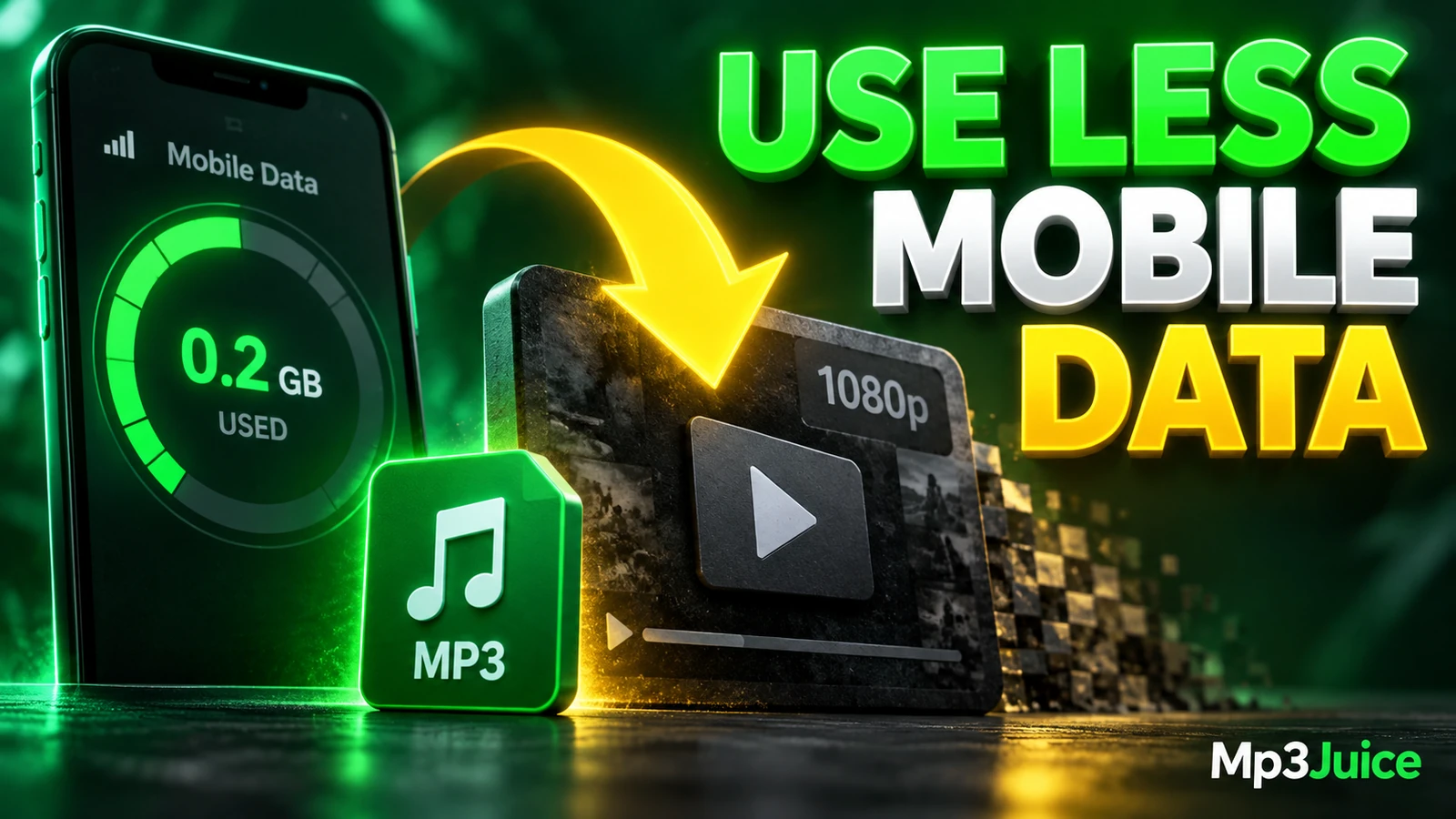
MP4 is a container often used for video with audio. Video commonly requires more data than audio-only listening, but exact size depends on the source, duration, encoding, and available option. For a music-only use case, requesting video is usually unnecessary mobile traffic. If you specifically need video, use the MP4 option knowingly and consider waiting for Wi-Fi.
Do not use a promotional Download Now link as though it were the site’s format-selection control. It is an advertisement link, not the MP3 or MP4 choice beside the recording. Following ads can add page loads and confusion without helping you save data.
For related audio-only use, see YouTube to MP3 or the MP3 Downloader page.
Budget File Size with Decimal Math
You do not need an exact file size to make a useful mobile data decision. For constant bitrate audio, a quick decimal estimate is enough:
- MB = kbps × seconds ÷ 8000
This estimate excludes metadata and assumes constant bitrate. Variable bitrate files vary, and a filename ending in .mp3 does not prove the file’s actual encoding, completeness, quality, or safety. Still, the calculation is a practical way to decide whether a planned transfer fits your data budget.
| Bitrate | Seconds | Decimal estimate |
|---|---|---|
| 128 kbps | 240 | 3.84 MB |
| 192 kbps | 240 | 5.76 MB |
| 320 kbps | 240 | 9.60 MB |
For a fictional three-minute track named Crimson Sky at 128 kbps, the estimate is 128 × 180 ÷ 8000, or 2.88 MB. Ten similar tracks would be about 28.8 MB before metadata and variation. If your remaining mobile allowance is tight, that estimate can be enough reason to wait for Wi-Fi.
Mp3Juice should not be assumed to provide a guaranteed bitrate selector or a fixed 320 kbps output. Re-encoding also cannot restore audio information removed earlier. If bitrate and file size details matter to you, read Mp3Juice MP3 Formats Bitrate and File Size Explained.
Avoid Repeated Transfer Retries
Repeated attempts are a common cause of wasted mobile data. If a preview stalls, a third-party converter is unavailable, or a transfer does not complete, pressing the same control again immediately may start more network activity without solving the problem. Pause, check your connection, and consider trying later or waiting for Wi-Fi.
Use the device’s download indicator or file manager to confirm whether a file actually arrived before starting another transfer. A completed local audio file is different from a streaming page, a link, a playlist entry, or a cloud placeholder. If you are unsure, open the saved file from local storage instead of returning to the page and downloading again.
Browser warnings about dangerous downloads should be treated as stop signals. Keeping built-in protection enabled is also part of data control: recovering from unwanted pages, repeated pop-ups, or suspicious transfers can consume more data and time. If a page looks suspicious, use the browser tab or window controls rather than trusting a fake close button inside the page.
Use Wi-Fi for Larger Sessions
Mobile data is best reserved for a small number of carefully chosen searches or urgent single-track transfers. If you plan to collect several songs, compare video options, or retry an unavailable conversion, move to a trusted Wi-Fi connection first. Starting a transfer on mobile data and then switching later does not undo the data already used.
Before beginning, confirm that your phone is actually connected to Wi-Fi and not silently using cellular data. Then start the download and wait for the browser to finish. If you leave the page too early or interrupt the connection, you may have to repeat the transfer later, which can use more data overall.
Android users who want phone-specific navigation can read How to Use Mp3Juice on Android Phones. For offline organization after a file is saved, see How to Prepare Mp3Juice Music for Offline Listening.
Replay Saved Files Locally
After an audio file is fully downloaded and saved on your device, replaying that saved file does not use mobile data for the file itself. That benefit applies only to the local file you open from storage. It does not stop other apps, web pages, previews, ads, cloud players, or streaming links from using the network.
Do not delete originals or move a music library without copying important files first. A saved file can be misplaced, renamed, or left in a browser download folder, and downloading it again just because it is hard to find wastes data. If you listen often, organize completed files in a local folder or player you can access without returning to the website.
Permission still matters. Publicly accessible or no-cost music is not automatically free to copy or share, and different rights can apply to the composition and the sound recording. For general site information, see Copyright. When in doubt about a specific use, get qualified local advice.