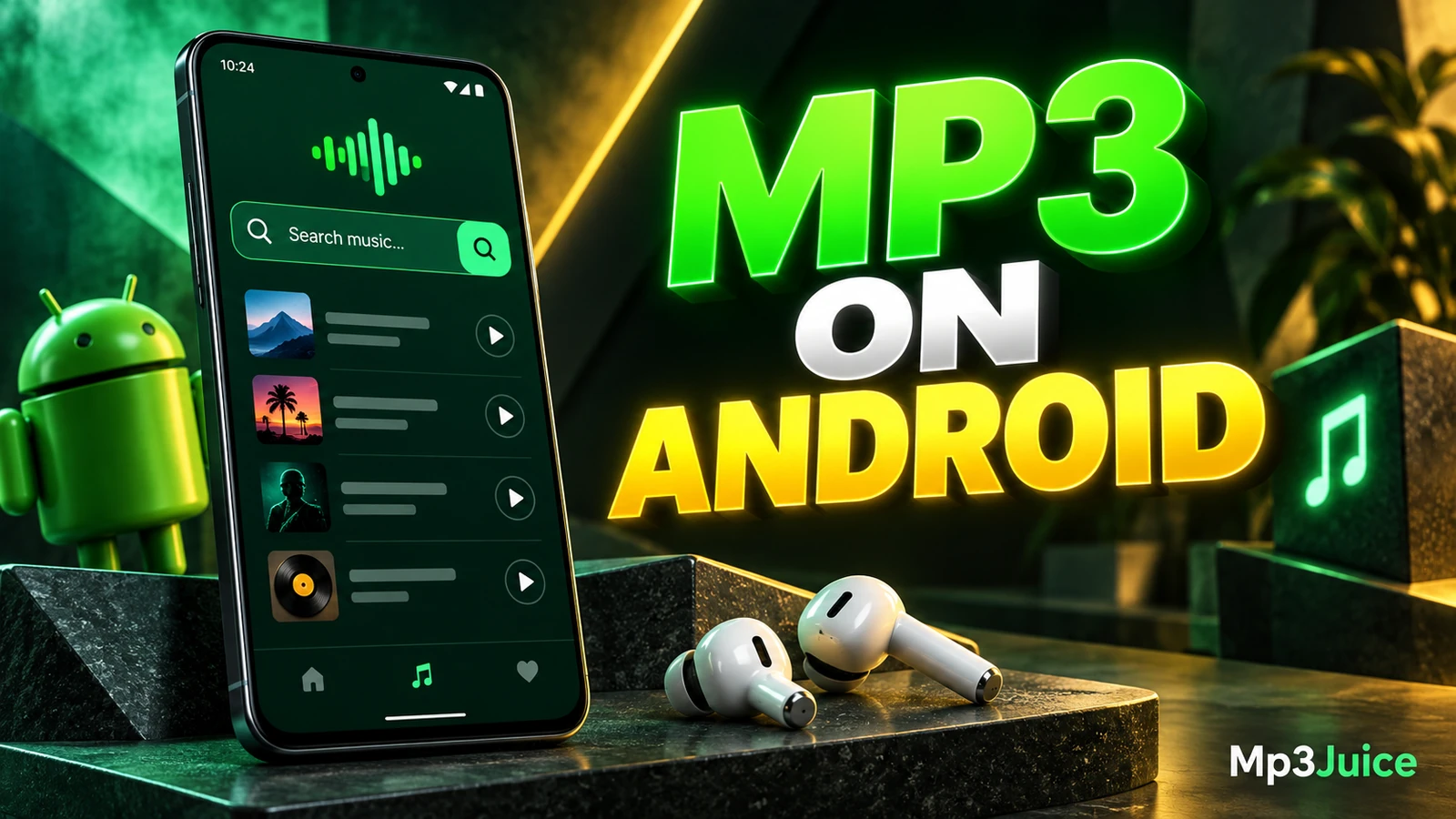
How to Use Mp3Juice on Android Phones
At a glance
Use Mp3Juice on Android by opening the site in Chrome, entering or pasting a title, artist, or YouTube URL, previewing results, and choosing Download MP3 when available. No APK, account, or broad device permissions are needed for homepage search.
In this guide
To use Mp3Juice on an Android phone, open the site in Chrome, enter a song title, artist name, or individual YouTube URL, then use the result controls to preview and choose an available MP3 or MP4 option. The homepage search does not require an account, payment, APK, extension, contacts, SMS access, or broad storage access.
Start in Android Chrome
Open Chrome on your Android phone and go to the Mp3Juice homepage. The mobile page works in a normal portrait layout, so you do not need a desktop browser mode or a separate Android app. Tap the search field and enter a clear starting query. The homepage accepts a song title, an artist name, or an individual YouTube URL.
A focused query usually works better than a vague one. For example, use Bright Skies Jane Sample rather than only Bright. If you are looking for a particular upload from YouTube, paste the individual video URL instead of a playlist or channel page. Unicode and non-English characters are preserved, so names with accents or non-Latin characters can be entered as written.
The form action is labeled Download. On this page, that label starts the search or lookup process. It does not mean a file has already been saved to your phone.
Type or Paste Your Query
Android Chrome gives you two practical ways to enter a copied title or URL. You can use the site’s Paste button, which uses browser clipboard access, or you can paste manually with the keyboard.
If Chrome allows clipboard access, tapping Paste can place the copied text into the search field quickly. If the browser asks for permission and you do not grant it, the search still works. Long-press inside the search field and choose Paste from Android’s standard text menu, or type the query yourself. This manual fallback is useful when you prefer not to use a browser clipboard prompt.
After you move from the homepage to the results page, the search input is empty. If you may need the same URL or title again, keep it copied or save it somewhere before navigating away.
Read the Results Before Downloading
The results page shows matching recordings with recording titles. Read the titles carefully before choosing one, especially when several versions of the same song appear. A live performance, remix, cover, lyric video, or shortened edit may have a similar title but be a different recording.
When available, tap Play to preview a result. A preview can help you confirm that the selected recording sounds like the track you intended to find. It cannot prove the file’s source, legal status, technical quality, or completeness, but it is still a useful check before you continue.
Each result has a Download control. Tapping it opens MP3 and MP4 options for that selected result. Choosing Download MP3 opens a third-party converter embedded below the selected recording. Availability can vary, so not every selected result will necessarily lead to the same final options every time.
Avoid Confusing Ads with Download Controls
The site includes third-party advertising, so take a moment to distinguish the result controls from promotional buttons. The result’s Download control is the one that opens the MP3 or MP4 choices for that recording. Download MP3 is the format option that opens the embedded converter below the result.
A button labeled Download Now may be promotional and should not be treated as the site’s format-selection control. Do not follow an advertisement, unfamiliar pop-up, or unrelated prompt as if it were the selected music download. If Chrome shows a dangerous download warning, treat it as a stop signal and do not try to work around it.
Download completion is a browser and file-system event. Seeing an MP3 option, a converter frame, or a button on the page does not by itself mean the file is already saved. Wait until Chrome reports that the transfer has completed, then confirm the file in Chrome’s downloads list or your phone’s Downloads folder.
Example Android Workflow
| Step | Action | What to Check |
|---|---|---|
| 1 | Open Chrome and visit Mp3Juice | Use the normal mobile page in portrait view. |
| 2 | Enter Bright Skies Jane Sample | This is a fictional example, not chart evidence. |
| 3 | Tap Download on the homepage form | This starts the search or lookup. |
| 4 | Review the result titles | Look for the intended recording, not just a similar name. |
| 5 | Tap Play, if available | Use the preview to check the recording before proceeding. |
| 6 | Tap the result’s Download control | Open the available MP3 or MP4 options for that result. |
| 7 | Choose Download MP3 | The third-party converter appears below the selected recording. |
| 8 | Complete the available converter step | Only a completed browser download creates a local file. |
If you need more detail on the broader MP3 process, see How to Download MP3 Files with Mp3Juice. For a page focused on the site’s MP3 service entry point, visit MP3 Downloader. If your starting point is a YouTube video URL, YouTube to MP3 explains that service page.
Find the File in Downloads
After a download finishes in Chrome, open Chrome’s three-dot menu and choose Downloads to view recent transfers. Chrome’s download history can show the saved file and help you open it or locate it. Deleting Chrome download history does not delete the file itself.
Many Android phones also include a file manager named Files, My Files, or something similar. Open that app and browse to Downloads if you want to move, copy, rename, or back up the file. A completed local audio file is different from a streaming page, a bookmark, a playlist entry, or a cloud placeholder.
Do not rely on the filename alone. A name ending in .mp3 does not prove the file’s format, quality, completeness, safety, or your right to reuse it. If you plan to edit tags, move the file into a music library, or rename a group of files, copy the originals first so you can recover from mistakes.
Permissions, Accounts, and Safe Use
The homepage search does not require registration or payment. It also does not require an APK, browser extension, contacts access, SMS access, or broad storage access. Android and Chrome may still manage normal browser actions, such as text entry, clipboard prompts, and completed file downloads.
Incognito mode is not a download safety tool. Files downloaded during an incognito session can remain on the device after the session ends, and incognito does not hide activity from visited sites or network operators. If you want more context on account-free use, read Mp3Juice Without Registration What Users Should Know. For site policy information, see the Privacy Policy.
Permission also matters for the music itself. Publicly accessible or no-cost content is not automatically free to copy, and private or noncommercial use is not a universal exemption. Protected compositions and sound recordings may involve different rights. YouTube’s terms restrict downloading except where the service authorizes it or permission is provided. For general site copyright information, visit Copyright.
Android FAQs
Do I need an APK or extension?
No. Use Chrome and the website. The Android workflow described here does not require installing an APK, native app, or browser extension.
Can I use Mp3Juice if clipboard permission is unavailable?
Yes. Long-press in the search field and use Android’s manual Paste option, or type the query yourself. The Paste button is optional for search entry.
Where did my downloaded file go?
Open Chrome’s menu and choose Downloads. You can also check the phone’s file manager and browse to the Downloads folder. The file appears only after the browser transfer completes.
How can I reduce mobile data use?
Preview before downloading, avoid repeated attempts on the wrong result, and use Wi-Fi for larger transfers when possible. For more practical ideas, see How to Use Less Mobile Data with Mp3Juice.