How to Use Mp3Juice on iPhone and iOS
At a glance
Use Mp3Juice on iPhone through Safari, not a native app. Search, choose the result’s Download and Download MP3 controls, then confirm completion with Safari’s download status and the Files app. A browser preview is not proof of a saved local file.
In this guide
To use Mp3Juice on iPhone or iOS, open the site in Safari, search by song title, artist name, or an individual YouTube URL, then confirm any saved file through Safari’s download status and the Files app. A browser player or preview is not proof that the audio is stored locally. On iPhone, the practical check is whether the transfer completes and whether the file appears in Files under Browse and Downloads, noting that the configured download destination can vary.
Start in Safari with the Right Search
Mp3Juice works in the browser on iPhone. There is no native iOS app required for the homepage search, and the homepage search does not require an account. In Safari, open the Mp3Juice homepage and enter a song title, artist name, or individual YouTube URL. The search form is labeled Download, and the same field can also accept a pasted URL.
If you copied a YouTube URL, the Paste button may use browser clipboard access. If iOS does not allow that access, you can still tap in the field and paste manually using the normal iPhone text controls. After you submit the search and move to results, the search input may be empty again, so do not treat an empty field as a failed search by itself.
For a broader audio-focused walkthrough, see How to Download MP3 Files with Mp3Juice. This iPhone guide stays focused on Safari, the Downloads control, and the Files app location.
Understand Results Before Tapping Download
Results show recording titles and may include a Play control. Play is a preview when available. It can help you check whether the result seems like the recording you wanted, but it does not show that a local file has been saved to your iPhone.
To move toward a file, use the result’s Download control. That opens format options such as MP3 or MP4. Choose Download MP3 when you want an audio file. The Download MP3 option opens a third-party converter embedded below the selected recording. Availability can vary, so a result appearing on the page does not guarantee that the converter will successfully provide a file every time.
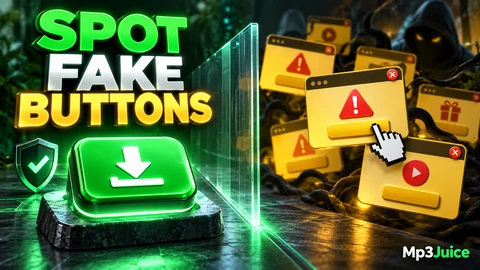
Be careful around advertising. A Download Now button may be a promotional outbound link rather than the site’s format-selection control. Do not follow an advertisement as if it were the music download. If a page looks unrelated, asks you to install something, or opens a suspicious prompt, stop and return to the browser tab controls instead of interacting with the page’s own fake close buttons.
Complete the Safari Download
After the embedded converter prepares the selected recording, use the actual download control provided for the prepared file. At that point, saving becomes a Safari and iOS file-handling event, not just a website option. The file is not confirmed until the browser download starts and completes.
Safari can show download status through its download control near the address area. Use that control to check whether a transfer is still running, completed, failed, or was interrupted. If you leave the page after only tapping Play, or if the converter page displayed an option but no browser transfer occurred, you should not assume that anything was stored on the iPhone.
A complete local audio file is different from a streaming page, a link, a playlist entry, or a cloud placeholder. The filename extension can be useful for recognition, but an .mp3 ending alone does not prove quality, completeness, safety, or even that the file is exactly what you expected. Listen to the result and check that the file opens from the saved location before relying on it offline.
Find the File in Files and Downloads
On iPhone, downloaded files may be found in the Files app under Browse and Downloads. The exact destination can vary depending on the browser and device configuration, so treat Downloads as the first place to check rather than an absolute guarantee for every iPhone.
- After starting the transfer, check Safari’s download control for status.
- When the transfer shows as complete, open the Files app.
- Tap Browse.
- Open Downloads, commonly shown under iCloud Drive or On My iPhone.
- Look for the recent filename and timestamp.
If the file is present there, you have stronger evidence of a local saved copy than you would from a browser player. If the file is not present, check Safari’s download list again and consider whether the transfer failed, was canceled, or was saved to a different configured location.
Downloaded MP3 files are not automatically imported into Apple Music. They may remain ordinary files in the Files app unless you move or manage them through a separate library workflow. For practical organization after saving, see How to Prepare Mp3Juice Music for Offline Listening.
Fictional Example: Erin Confirms a Saved File
| Step | Action | What it confirms |
|---|---|---|
| 1 | Erin searches for the fictional track Bright Skies by the fictional artist Fictional Star in Safari. | Mp3Juice returns recording titles with Play and Download controls. |
| 2 | She taps Play on one result. | The preview helps her assess the recording, but nothing is proven saved. |
| 3 | She taps the result’s Download control, chooses Download MP3, and waits for the embedded converter. | She is using the format path rather than a promotional Download Now advertisement. |
| 4 | She starts the prepared file download and watches Safari’s download status. | The save process has moved to the browser and iOS file system. |
| 5 | She opens Files, then Browse, then Downloads, and sees the recent MP3 file. | The file is locally available from the Files app location she checked. |
If the File Is Missing or Only Plays in the Browser
If you can play audio in Safari but cannot find a file in Files, you may be hearing a preview or stream rather than using a completed download. Return to Safari’s download control and confirm whether the transfer actually completed. If there is no completed item, repeat the download carefully from the selected result’s Download control and the Download MP3 option, avoiding unrelated advertisement buttons.
If you use another browser on iPhone, check that browser’s own downloads area or history. Browser history and downloaded files are not the same thing. Removing history entries does not necessarily remove files that were already saved, and clearing broad browser data is not a useful first step when you are simply trying to locate one transfer.
If a dangerous download warning appears, treat it as a stop signal. Do not disable device or browser protections to force a file through. If a suspicious pop-up appears, close it using Safari’s tab or window controls. For more detail on misleading buttons and redirects, read How to Handle Mp3Juice Popups Redirects and Fake Buttons.
Format, Rights, and iPhone Limits
MP3 is a lossy audio format, and re-encoding cannot restore information that was removed earlier. Mp3Juice does not provide a guaranteed bitrate selector or guaranteed 320 kbps output on this site. If file size or audio quality matters to you, judge the saved file itself rather than assuming a specific bitrate from the label.
MP4 is a container commonly used for video with audio. It is not accurate to say that every MP4 is always larger or that every MP3 version is identical. On iPhone, the more immediate choice is usually practical: choose MP3 when you want an audio file, then confirm the completed download in Files.
Legal permission also matters. A result being publicly accessible or free to access does not automatically mean you have permission to copy it. Copyright rules, licences, platform terms, and national exceptions can differ, and composition rights may be separate from sound recording rights. For site information on rights concerns, see Copyright. If your use is uncertain, seek qualified local advice.
For related service pages, you can also review MP3 Downloader and YouTube to MP3. On iPhone, the key rule remains simple: a playable page is not a saved file. Confirm the Safari transfer, then verify the file in Files under Browse and Downloads or the download destination configured on your device.