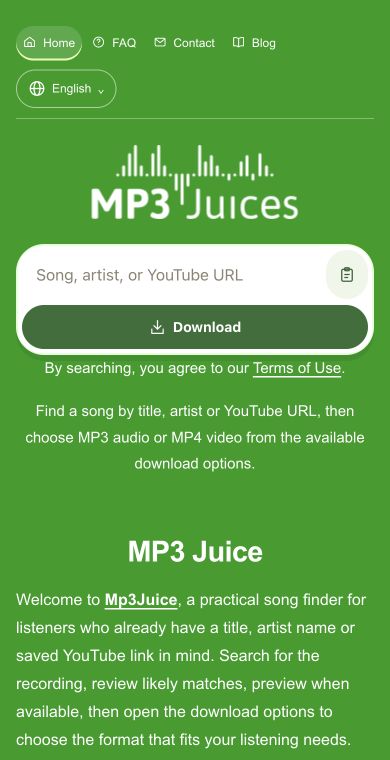
Paste a YouTube video link, review the matched clip, then choose MP4 when you want the picture and sound saved together.
YouTube to MP4 Downloads from a Video URL
Welcome to Mp3Juice, YouTube to MP4 is for saving a selected video as a playable file when the visuals matter. Use a title, artist, or YouTube URL to find a music performance, dance sequence, cover, rehearsal clip, or spoken video, then choose MP4 from the available download options.
Popular Music
Songs and artists to put on your next listening list.
The process separates two decisions: first choose the correct clip, then choose the output. That helps avoid saving the wrong performance or selecting audio only when you need the video.
Paste the YouTube URL when you already have the exact video. If you do not have the link, enter the artist name, track title, or a clear video title to begin the search. The input should identify the clip you want, not describe lyrics from memory.
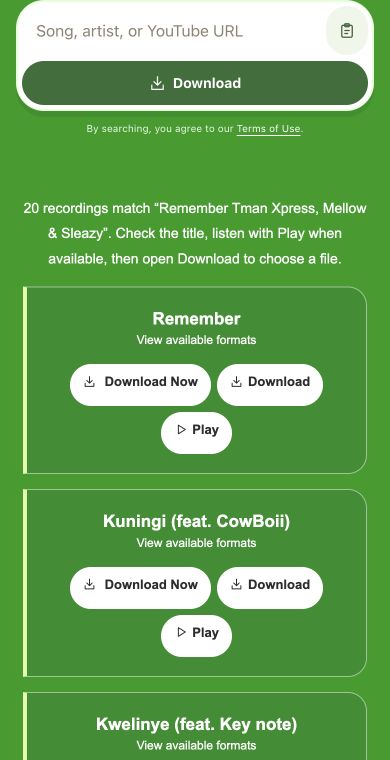
Review the returned result before moving on. Similar uploads can share the same title, especially with live performances, dance edits, rehearsals, covers, and short versions. If a Play option is shown, use it to confirm the visual content and sound match what you meant to save.
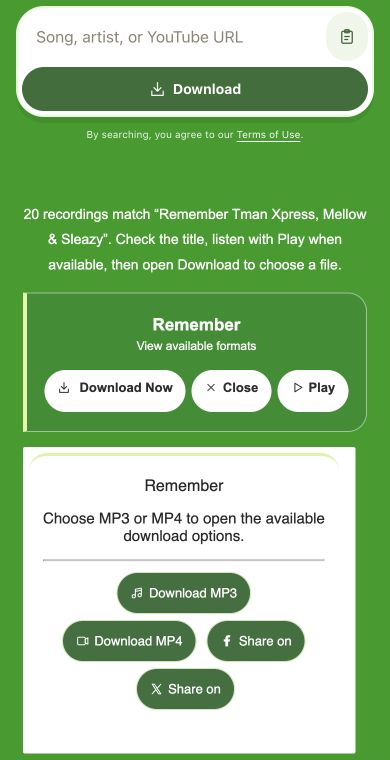
After selecting the correct result, open Download options and choose MP4 when it is available. MP4 keeps the moving image with the sound. If you only need the soundtrack, choose an audio option instead.
These options help when the visual part of a YouTube clip is as important as the audio track.
Use a direct video link
A YouTube URL is the clearest starting point for one known upload. It is useful for a concert recording, choreography clip, lesson segment, cover performance, rehearsal reference, or spoken video that could be confused with other uploads using similar names.
Search by known music details
When you do not have the address, use the title or artist to find the clip. Keep the search specific enough to separate the intended version from remixes, reuploads, live takes, short edits, and audio-only posts.
Confirm before choosing output
Selecting the right clip and selecting the file type are different steps. First confirm the performance or visual sequence. Then open Download options and choose MP4 if you want the file to include both video and audio.
Narrow the result before download
Good input helps reduce confusion between similar videos and makes the final format choice easier.
Paste the complete YouTube address
If you have the video open already, copy the full YouTube video address and paste it into the search field. This focuses the result on the selected upload instead of starting a wider title search.
Use version details in text searches
For title or artist searches, add words that identify the version, such as live, acoustic, cover, rehearsal, choreography, official video, studio session, or venue name. These details help separate a visual performance from unrelated audio posts.
Supporting services for music and video tasks
The services below support related music tasks. Use the input that best identifies your recording, then check whether its available download includes video.
Use Mp3Juice for mixed search inputs, Tubidy for quick mobile music finds, Fakaza for South African tracks, and YTMP3 for direct YouTube link conversion.
Format choices for audio or video
Available choices depend on the selected result. Pick the format that fits how you plan to use the file.
MP3
Audio option for listening
Choose MP3 when the picture is not needed. It suits music playback, spoken content, or a performance where the soundtrack matters more than movement, staging, screen action, or visual detail.
MP4
MP4 option for picture and sound
Choose MP4 when the visible action is part of the value of the clip. Dance practice, instrument technique, stage movement, screen demonstrations, music videos, and rehearsal footage all rely on sound and picture staying together.
YouTube to MP4 download questions
Can I paste a YouTube URL directly?+
Yes. Paste the YouTube video address into the search field, review the matched result, then open Download options if it is the clip you want.
When should I choose MP4 instead of MP3?+
Choose MP4 when the visible performance matters, such as dance movement, instrument technique, staging, demonstrations, or rehearsal footage. Choose MP3 when you only need the sound.
Can I preview the video before downloading?+
Some results include a Play option. When it appears, use it to check the upload, version, and visual content before choosing a download option.
Does Mp3Juice control the final video quality?+
No. The available quality and format choices depend on the selected source and the download options shown for that result.
Do named service sections belong to Mp3Juice?+
Yes. This service is independently operated within Mp3Juice and is not affiliated with YouTube or other named platforms.
May I download any YouTube video I find?+
Use the service only for material you have permission to download, such as your own content or files allowed by the rights holder.
Paste the exact YouTube URL, or search by title or artist, then confirm the matched result. Open Download options and choose MP4 when you want the visual performance saved with its sound.